
Once uRenew: Automated Borrower Renewal is live, you will have full visibility into which patron accounts have been renewed and which have not.
To view this information, navigate to: Patron Services → Patron Renewal.
You will be directed to the Patron Renewal Overview dashboard, where you can review and manage renewal activity.
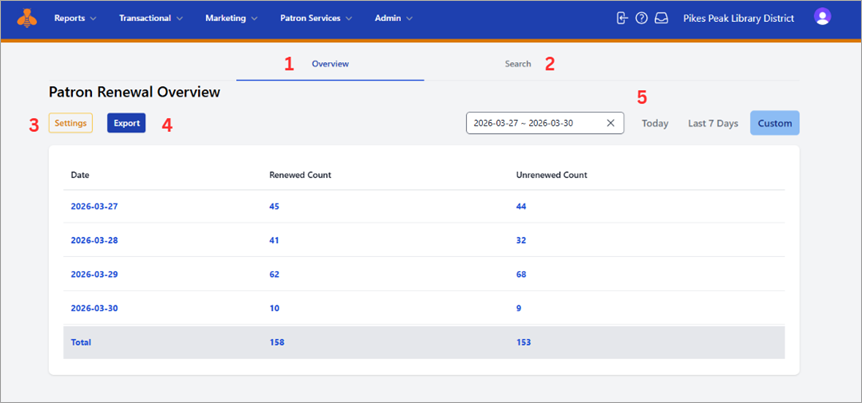
Dashboard Overview:
- Overview Tab: Displays a summary of total accounts renewed and not renewed, organized by date.
- Search Tab: Allows you to locate a specific patron using a barcode, Patron ID, or email address.
- Settings: Provides visibility into the geographic boundary(ies) configured for renewal eligibility.
- Export: Enables you to export patron data for further analysis or reporting.
- Date Selector: Filter results by predefined ranges (e.g., Today, Last 7 Days) or select a custom date range.
Viewing Detailed Patron Records
For more granular detail, click on any Date, Renewed Count, or Unrenewed Count within the dashboard.
This will open a detailed list of patron records, which can also be exported as needed.
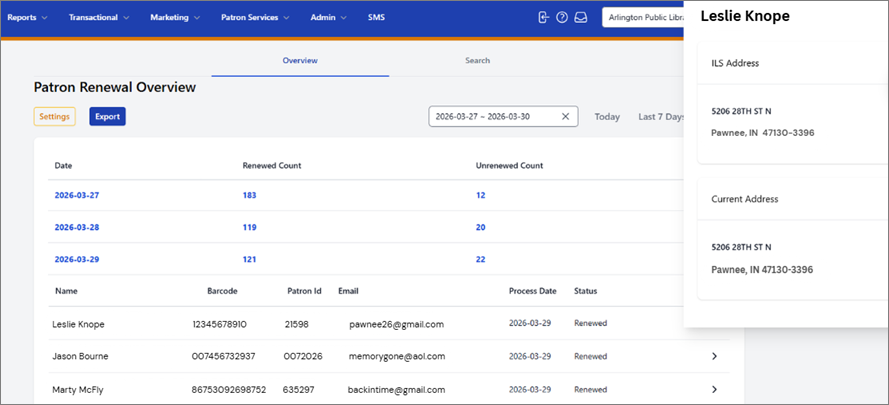
Each record includes:
- Name
- Barcode
- Patron ID
- Email Address
- Process Date
- Renewal Status
A detailed Status listing is provided in the Support portal and can be located here: uRenew Status Descriptions
The final column displays address information. Selecting the caret icon (under the home symbol) will expand the record to show both:
- ILS Address
- Verified/Current Address
SETTINGS:
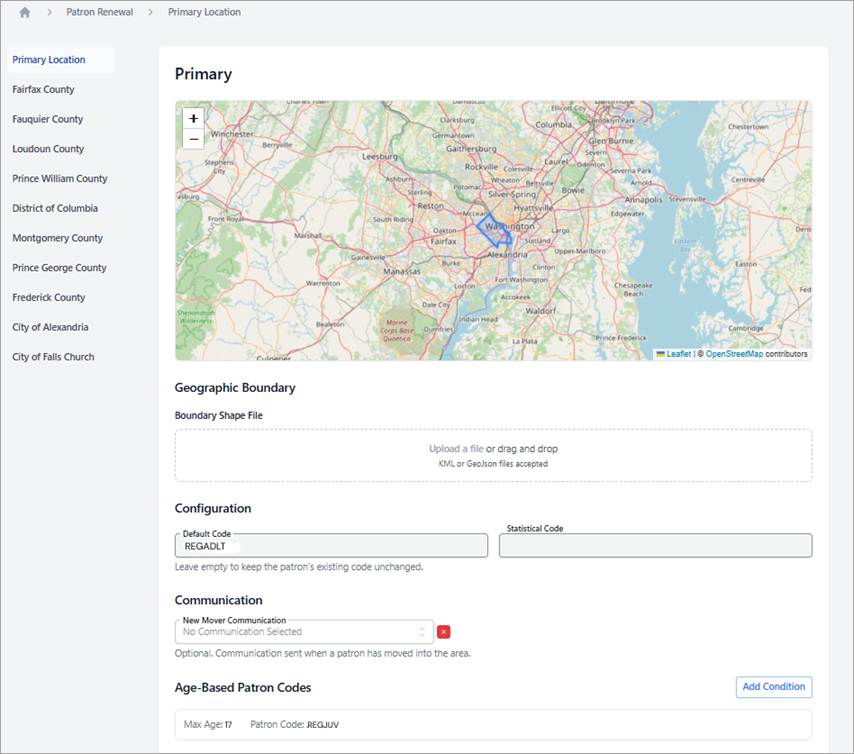
The Settings section provides visibility into the configuration used to determine renewal eligibility, including:
- Geographic service boundaries
- Reciprocal service areas
- Age-based patron code rules
(Please note that this section is view-only.)
If you would like to request any updates or modifications to these settings, please submit a ticket through the MessageBee Portal, and our team will be happy to assist.
Editing Patron Renewal Email Notifications
Patrons will receive one of two email notifications based upon their renewal outcome.
To edit the content of these emails:
- Navigate to Marketing → Campaigns.
- Locate the Card Renewal campaign.
- Within the campaign, you will see two email templates:
- Card Renewed
- Card Not Renewed
- Click Edit to update the text or layout of the template.
- Click Save after making your changes.
Please let us know if you need any assistance editing/configuring these emails.
Reporting on Renewal Communications
To view reporting for renewal-related email communications:
- Navigate to Reports → Marketing
- Select the dropdown next to Email
- Choose the appropriate Campaign and Communication type
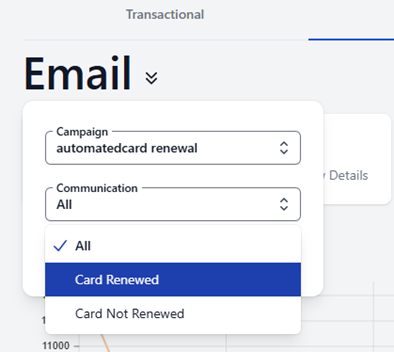
This will filter results specifically to renewal-related notifications (e.g., Card Renewed and Card Not Renewed emails).. In the examples below, we have isolated to both card renewed and card not renewed emails:
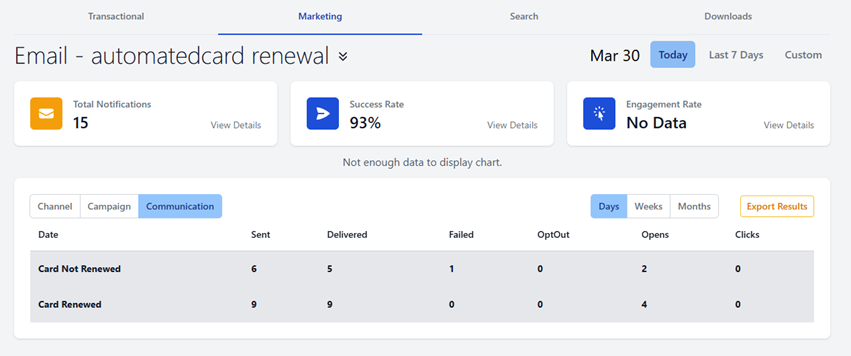
Reporting includes:
- Messages Sent
- Delivery Rates
- Failures
- Opt-Outs
- Opens
- Clicks
You may export results for further analysis at any time.
For deeper insights:
- Click the Success Rate card to review delivery failures
- Click the Engagement Rate card to view patron interaction (click activity)
.