
Use the Offline Periods settings to temporarily disable the registration widget during scheduled or unscheduled service interruptions.
Add on Offline Period
- Navigate to Patron Services → Patron Registration → Settings and select Offline Periods.
- Select Add Offline Period.
- Enter the desired date and time information for the offline period, then select Save.
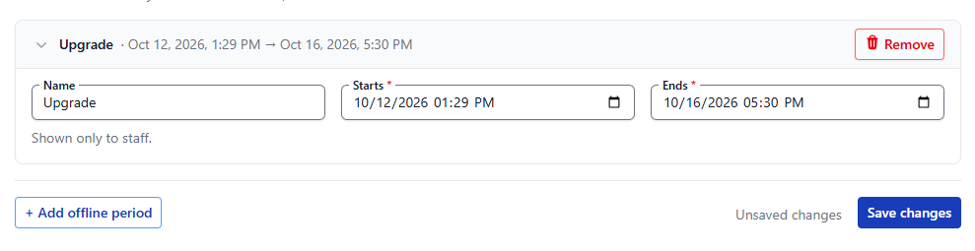
During the scheduled offline period, registrants will be unable to use the registration widget and will instead see your designated offline message.
Customize the Offline Message
You can use the default offline message or customize the wording displayed to patrons.
To customize the message:
- Select Edit the Offline Message. This will take you to the Wording section under Customize Widget.
- Select Offline Status. Enter the message you would like seen while the registration widget is unavailable.
- Select Save to apply your changes.
Your customized message will automatically display during the designated offline period. Once the offline period ends, the registration widget will become available again.
If you have any questions or need assistance configuring an offline period, please open a support ticket or contact your Customer Service Account Manager.