Learn how to view, edit, and send test messages for your transactional SMS templates in MessageBee.
SMS Template Selection
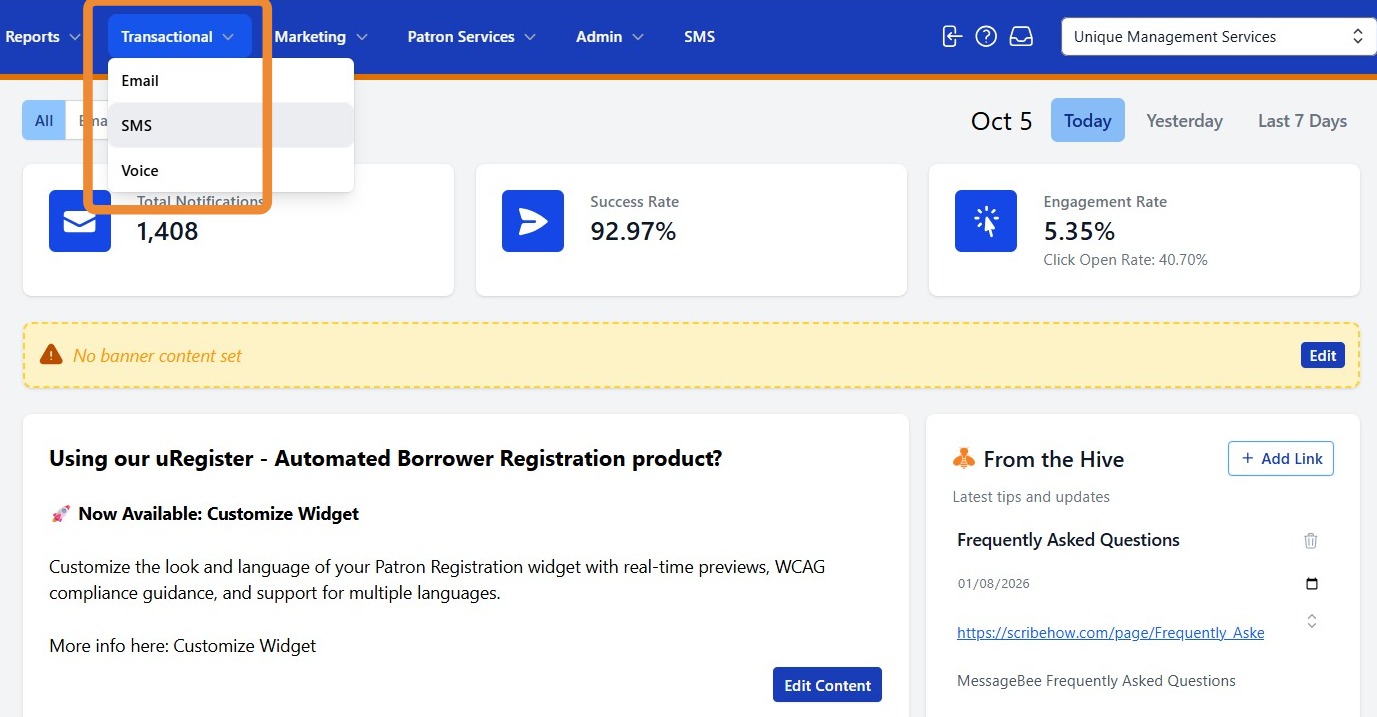
1. To view your transactional SMS templates (circulation notifications), navigate to the Transactional tab and select the SMS channel.
2. You will then be able to select and view the wording/design for the desired template.
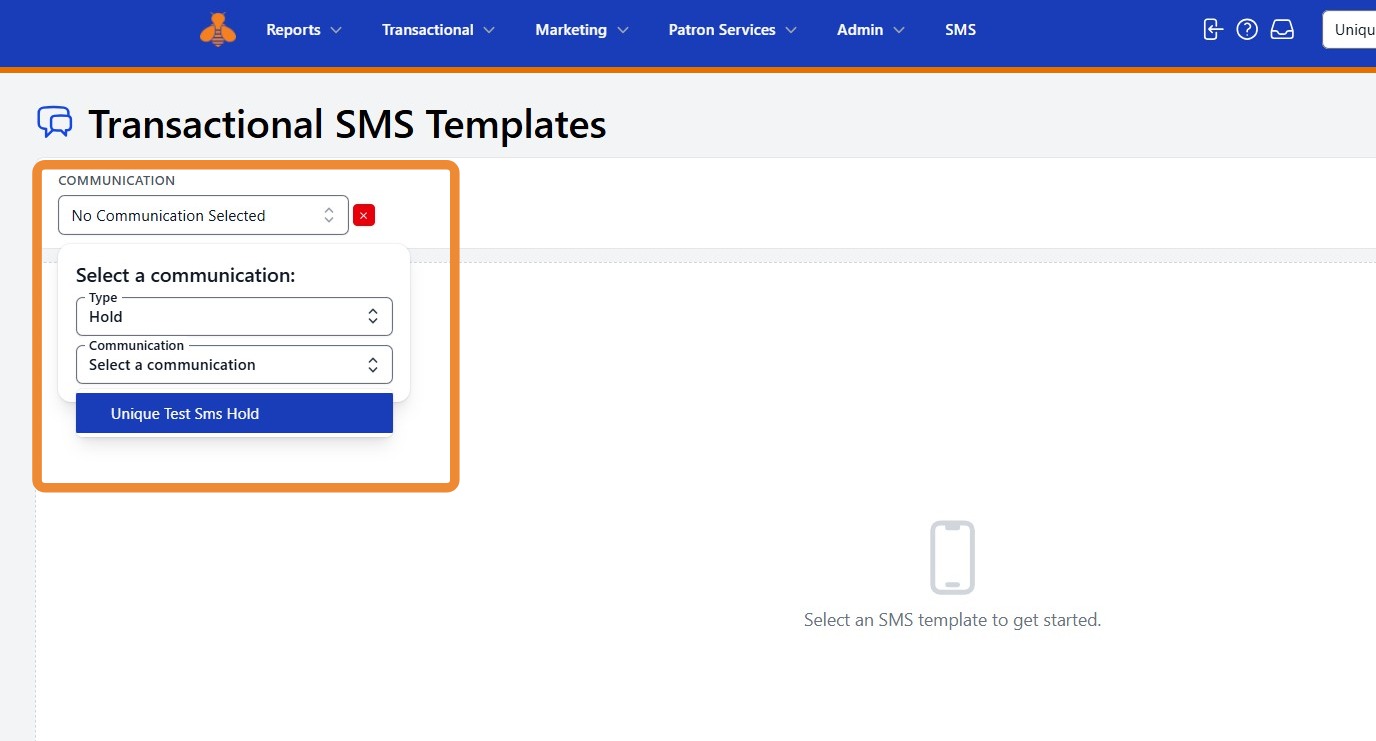
Select No Communication Selected to open the drop-down menu and choose the template you would like to review or edit.
First, select a Type of notification (Hold, Overdue, etc.). Then, select the specific Communication (Hold pickup, hold reminder, etc.).
Template Configuration
3. Once you make your selection, a preview of the SMS message will appear.
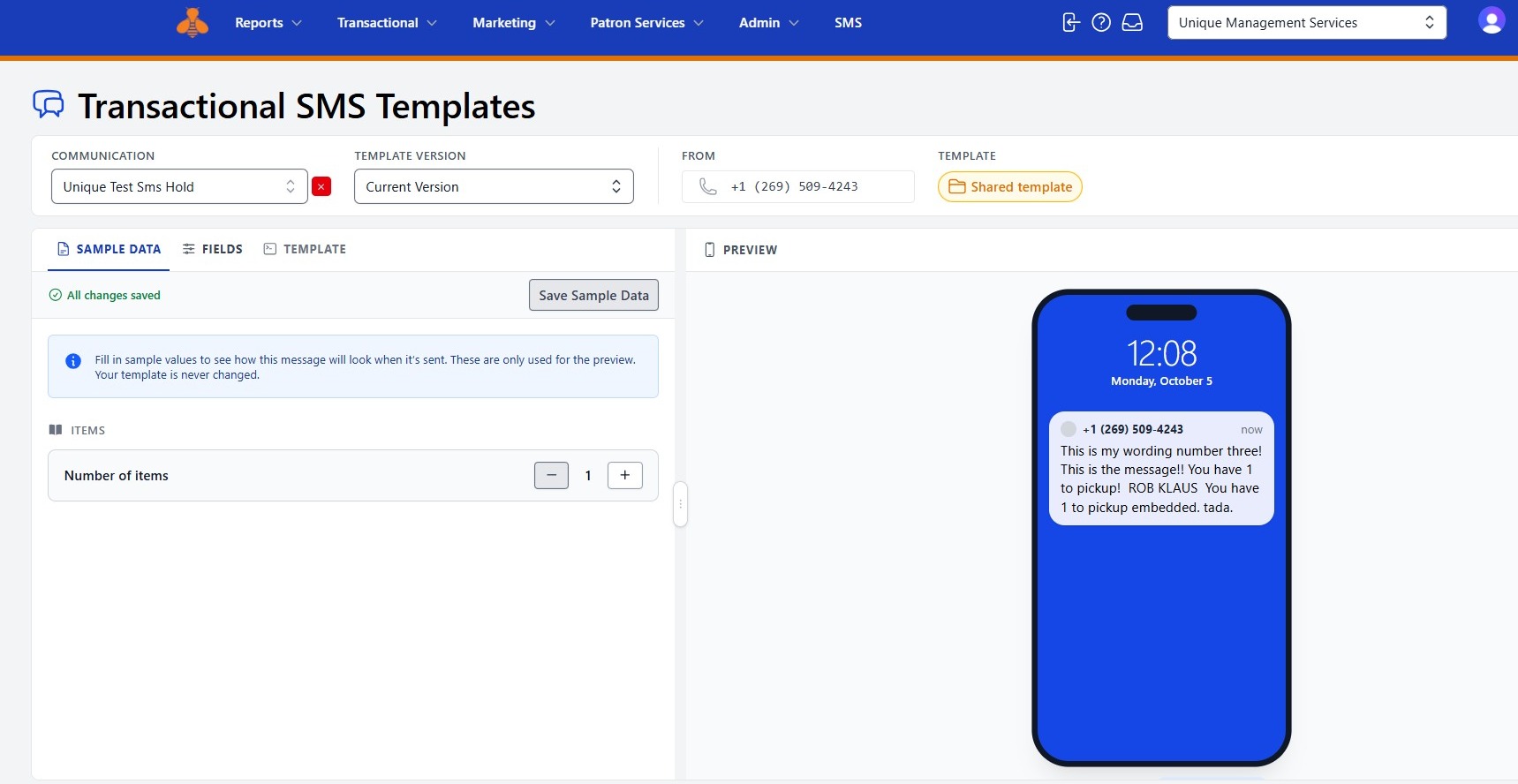
4. To modify the message wording, select Fields.
The current message content will appear below. Make our desired changes, then select Save Fields to save the updated wording.
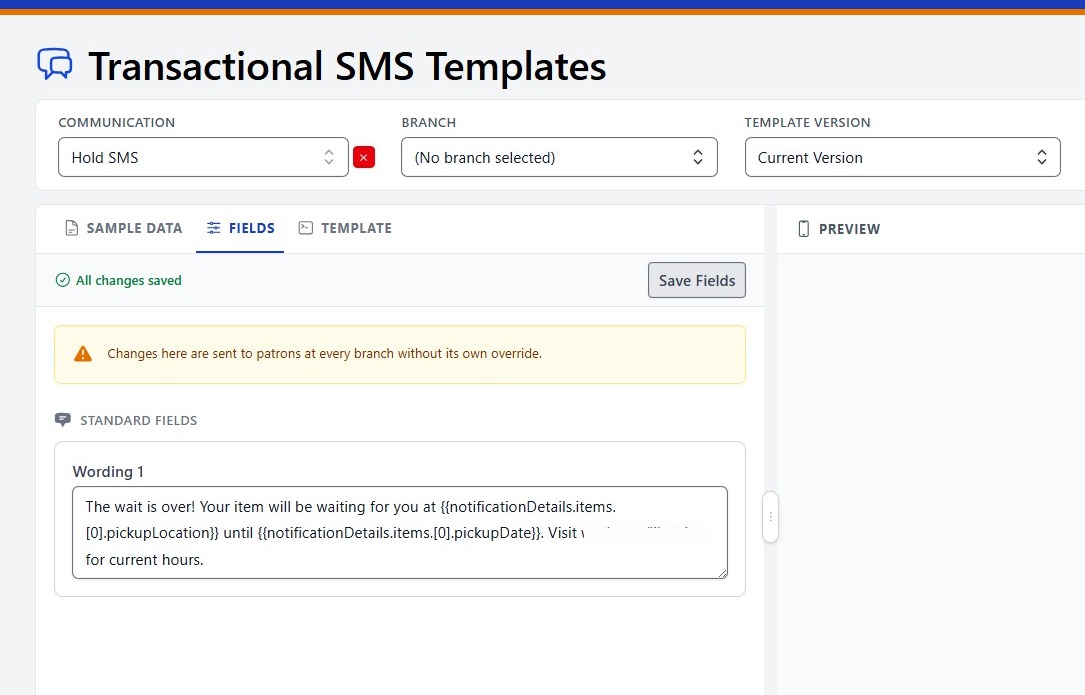
Important:
Do not modify any fields enclosed in curly brackets { } unless you have discussed the requested change with the Unique team. These fields are used to dynamically populate information in your messages.
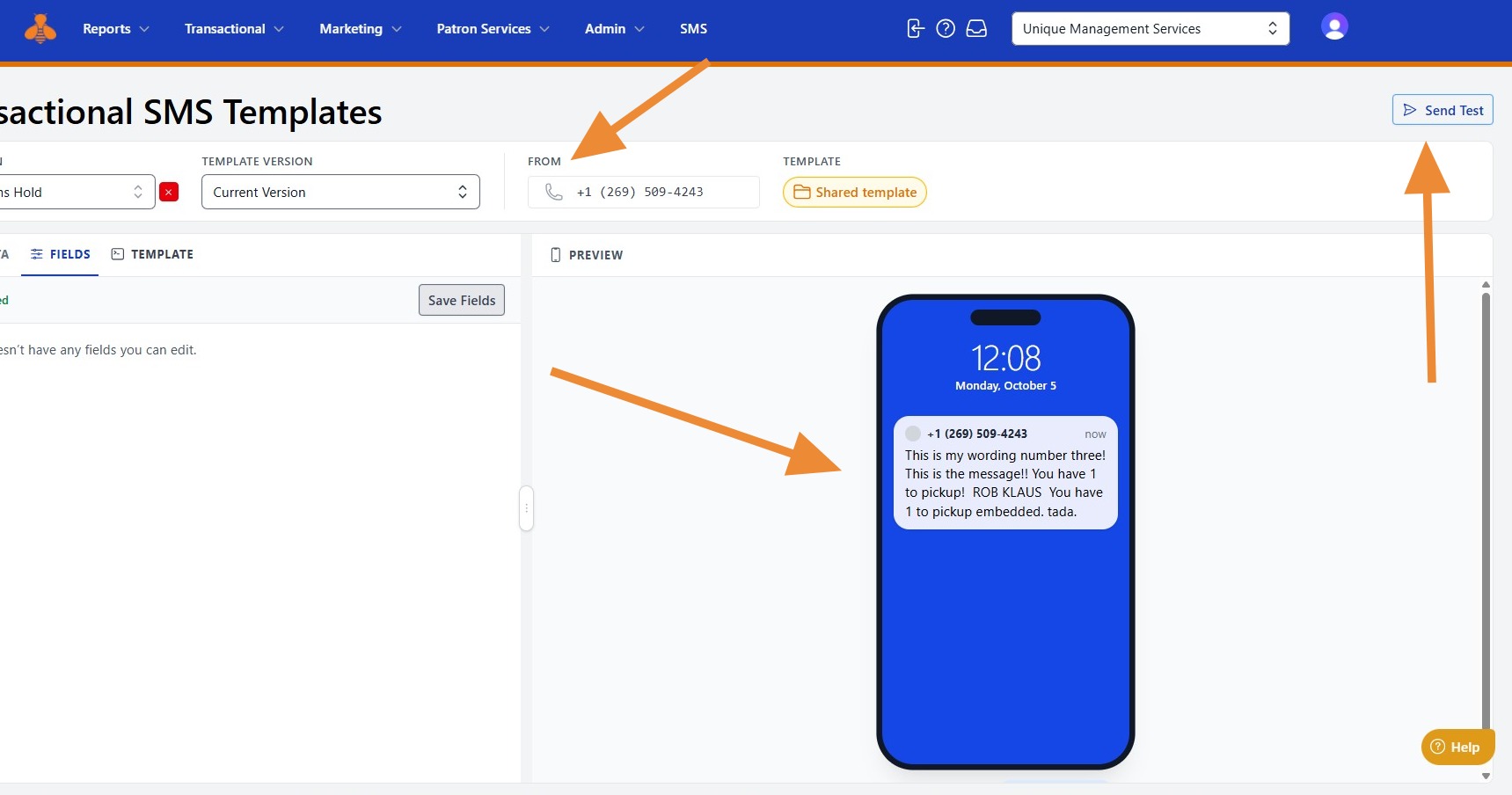
5. On the right side of the screen, you will see your From number, a preview of the message, and the Send Test option.
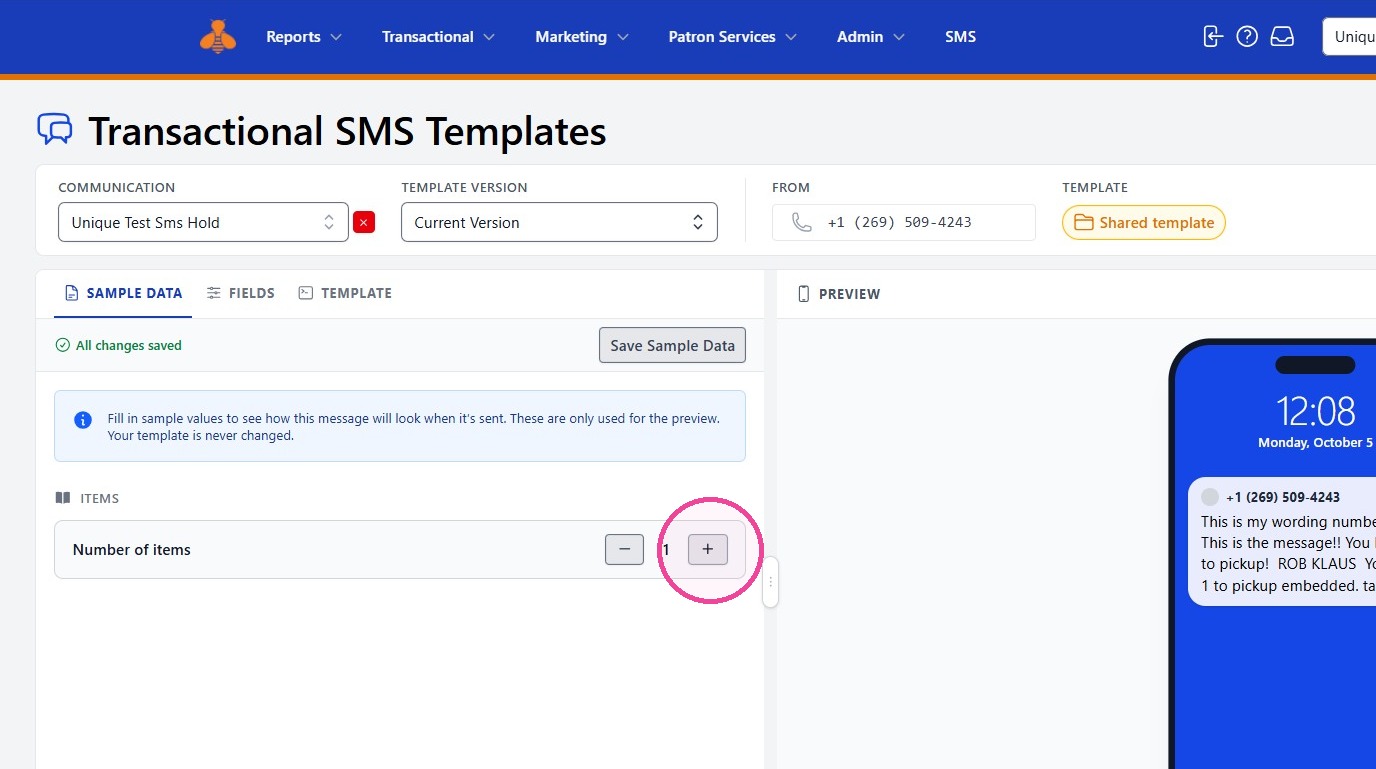
6. If desired, edit the sample data to see how different information will appear in the message preview and test SMS.
Test SMS
7. When you are ready to test your template, select Send Test.
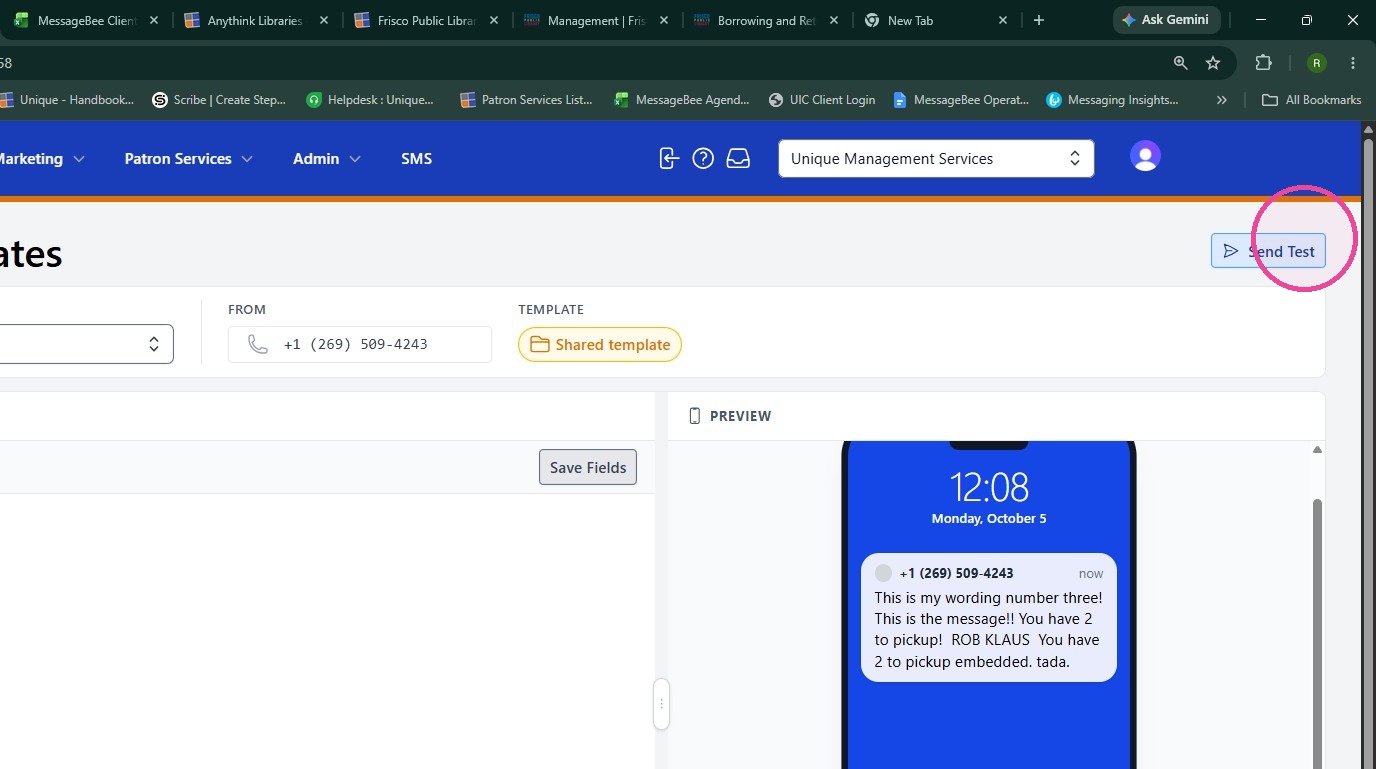
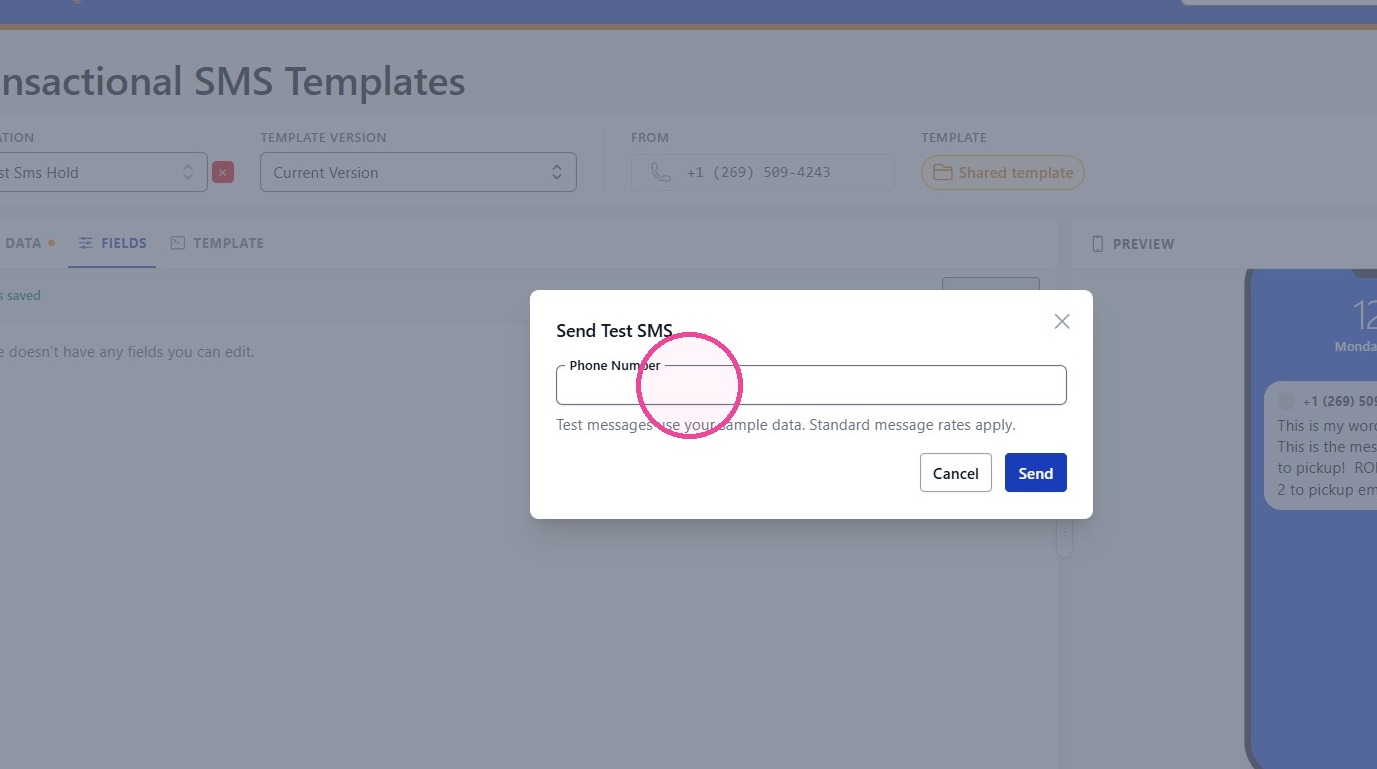
8. Enter the phone number where you would like the test message delivered, then select Send. Your test SMS should arrive shortly. Review the message to confirm that the content and formatting appear as expected.