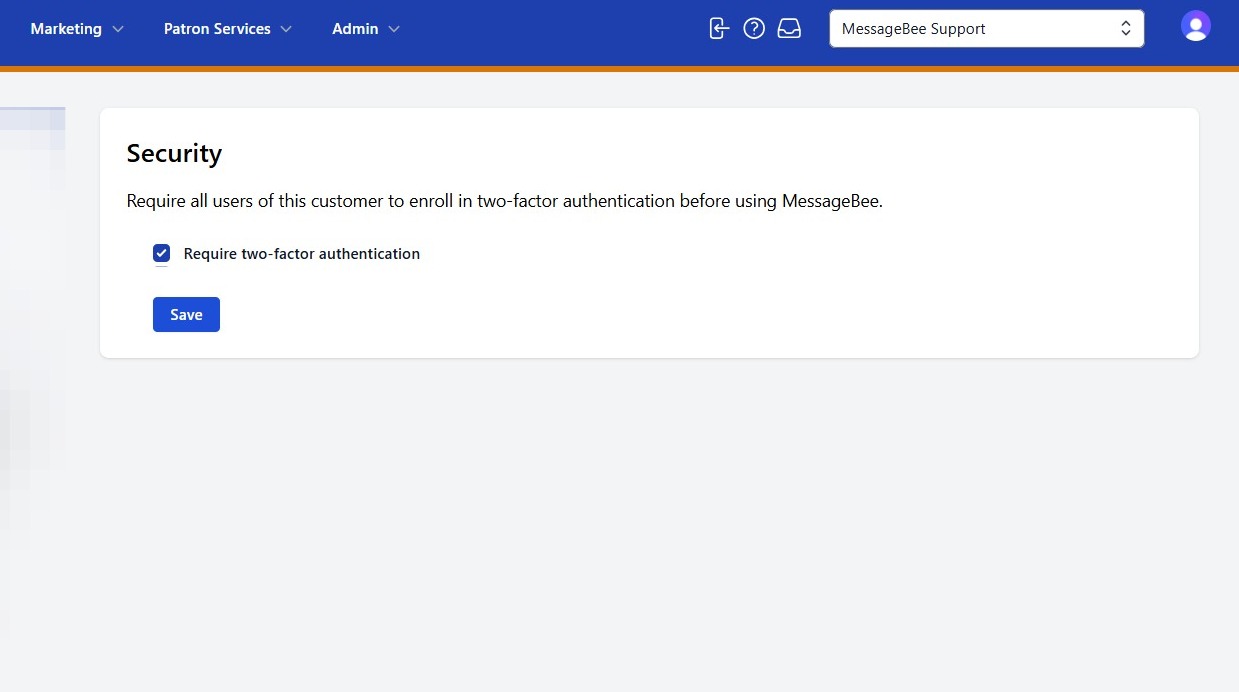
1. At present, MessageBee gives the option for libraries to require two factor authentication for it's users.
In the near future, this will be a requirement to access the portal.
2. Accepting Your Invitation:
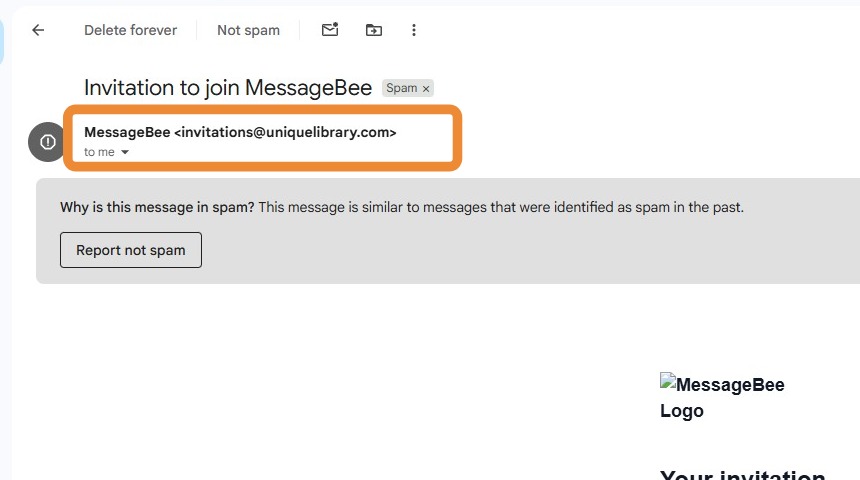
When you are invited to MessageBee, you will receive an email with a link to accept the invitation.
Please note - this sometimes will hit spam inboxes. The sender will appear as: invitations@uniquelibrary.com.
3. Setting Up Your Account:
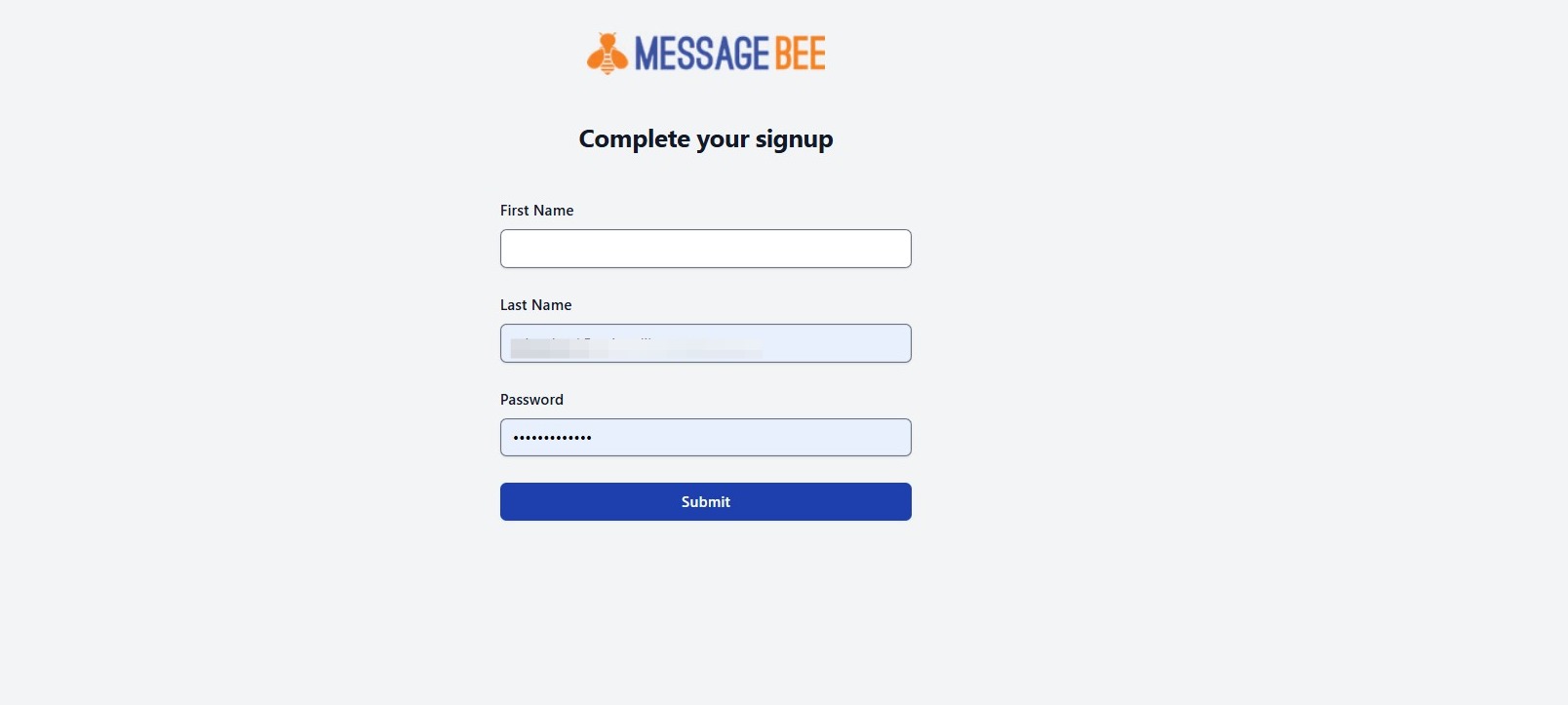
Upon accepting the invitation, you will be prompted to enter your:
- First name
- Last name
- Create your Password
Password Requirements:
- At least 12 characters
- At least one uppercase letter
- At least one lowercase letters
- At least one number
- At least one special character
Tip: On your first login, you may briefly see a “sad bee” screen after entering your username and password.
If this occurs, simply refresh your browser, and you will be redirected to the home page.
4. Once signed in, you will land on the MessageBee home page.
If two-factor authentication is required, you will see an alert banner at the top of the page prompting you to complete the setup process.
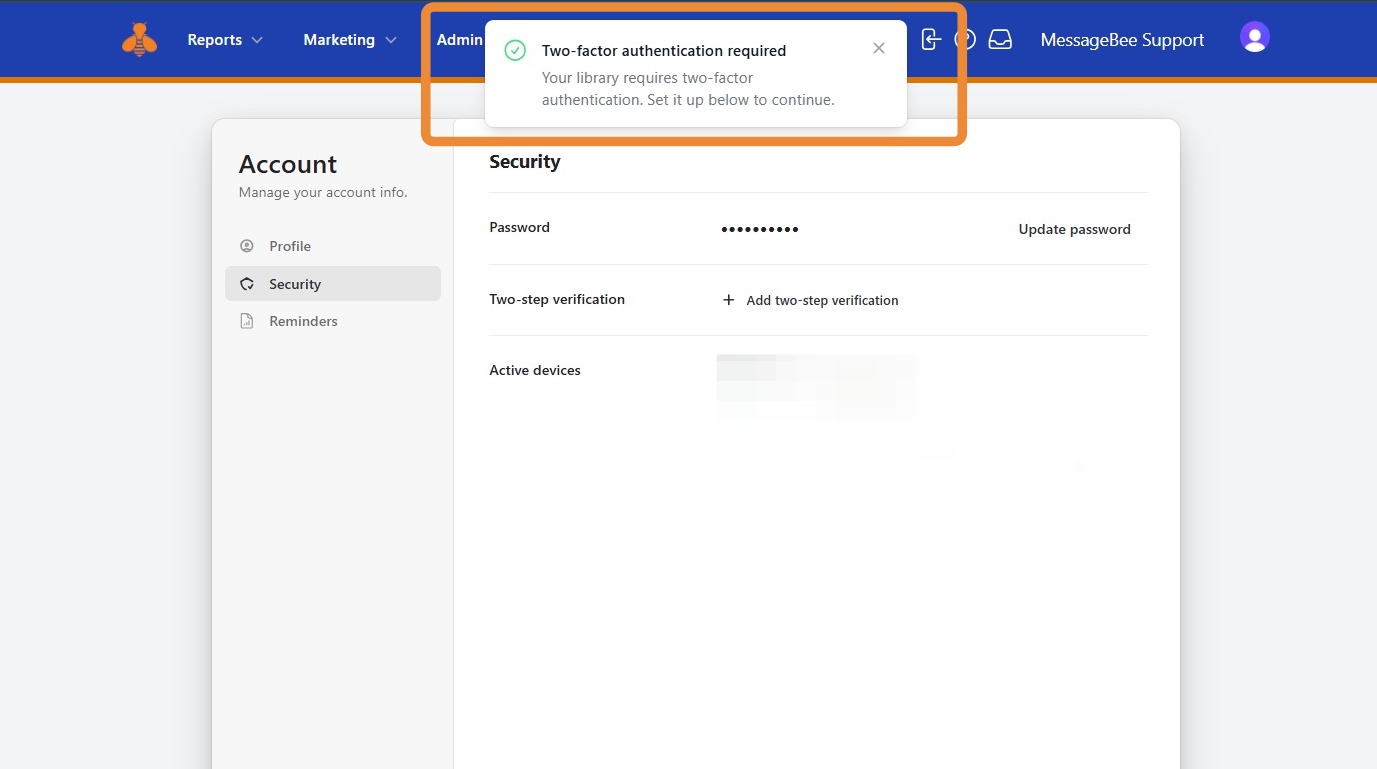
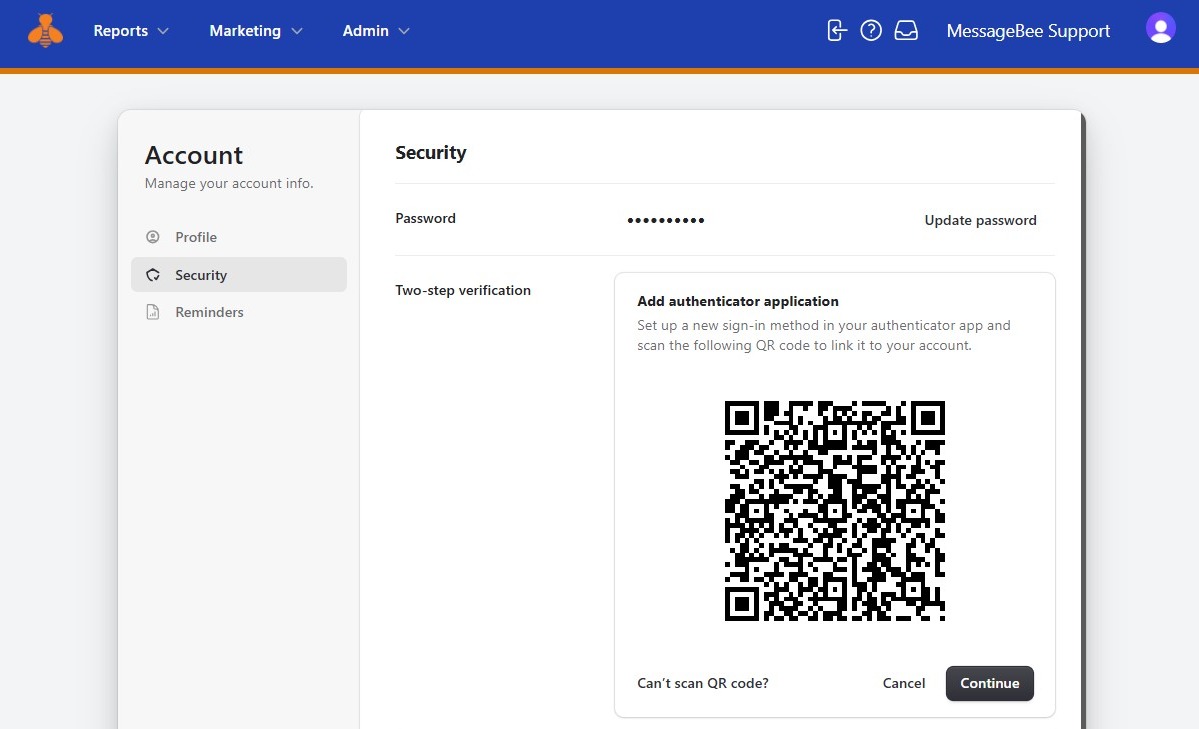
5. Adding 2FA is easy. Simply select Add Two Factor and select your preferred method between SMS or Authenticator Application.
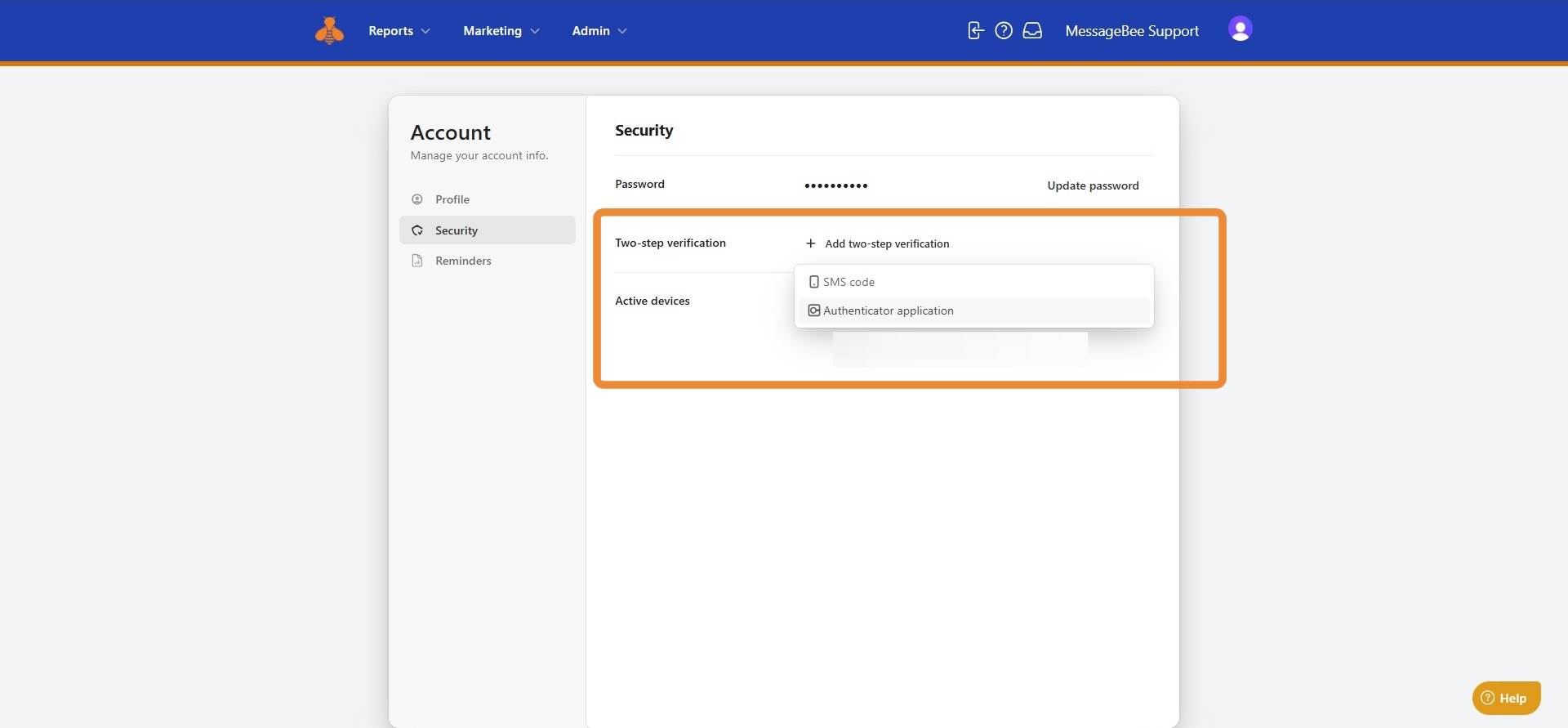
6. Follow the prompts to finalize setup using your selected method.
Once configured, two-factor authentication will be required when signing in to your MessageBee account.