
Auto-Reply and Blocking options
The 2-Way SMS feature in MessageBee enables real-time communication with patrons directly through the MessageBee portal. This guide outlines how to configure auto-replies and block unwanted numbers—helping you maintain a professional, efficient, and secure communication channel.
ACCESSING THE 2-WAY SMS PORTAL
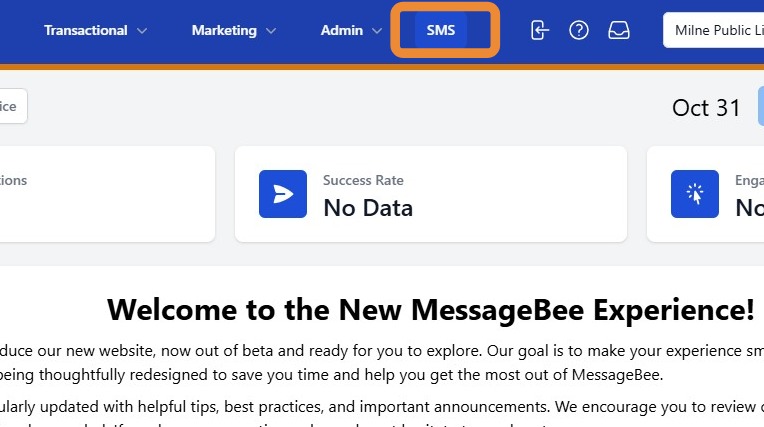
To access your 2 way SMS feature in MessageBee portal, Select SMS From the top menu.
SETTING UP AUTO-REPLIES
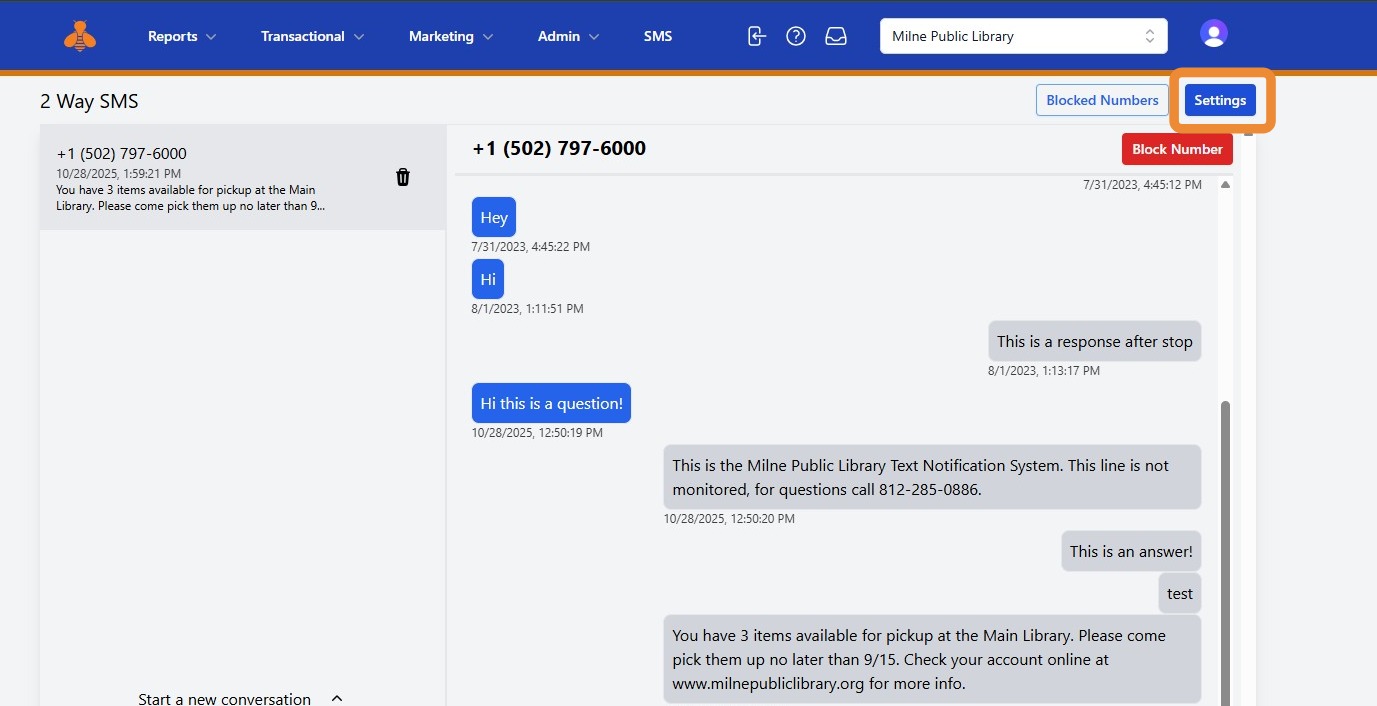
Navigate to Settings to create an automatic reply for patrons who respond to your SMS notifications.
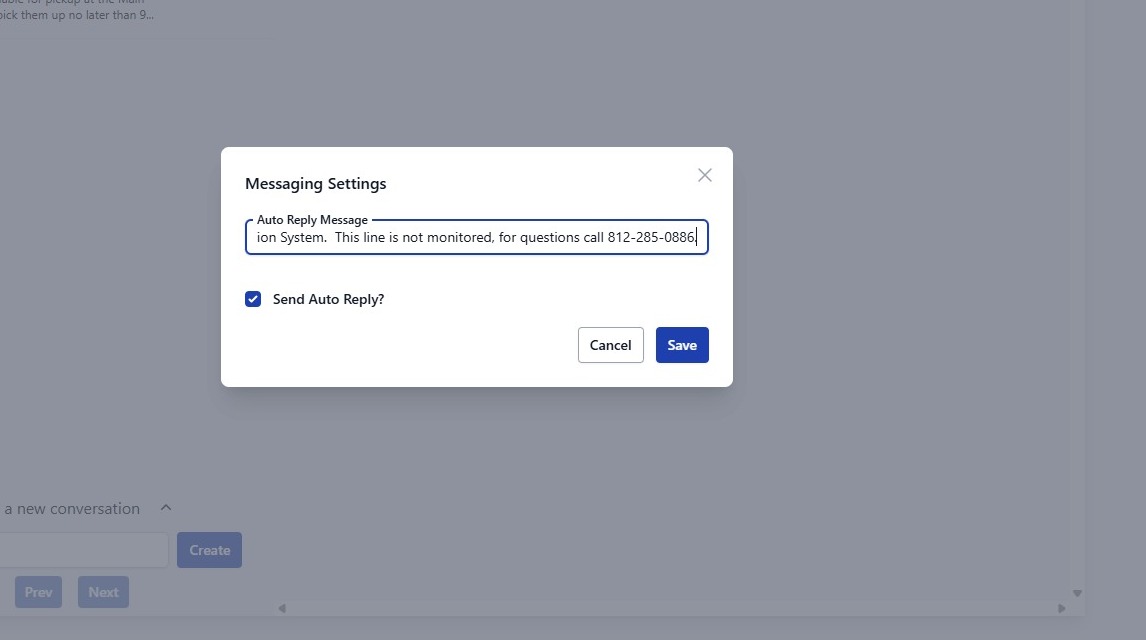
Enter the message you would like patrons to receive, select Send Auto Reply, and click Save.
BLOCKING UNWANTED NUMBERS
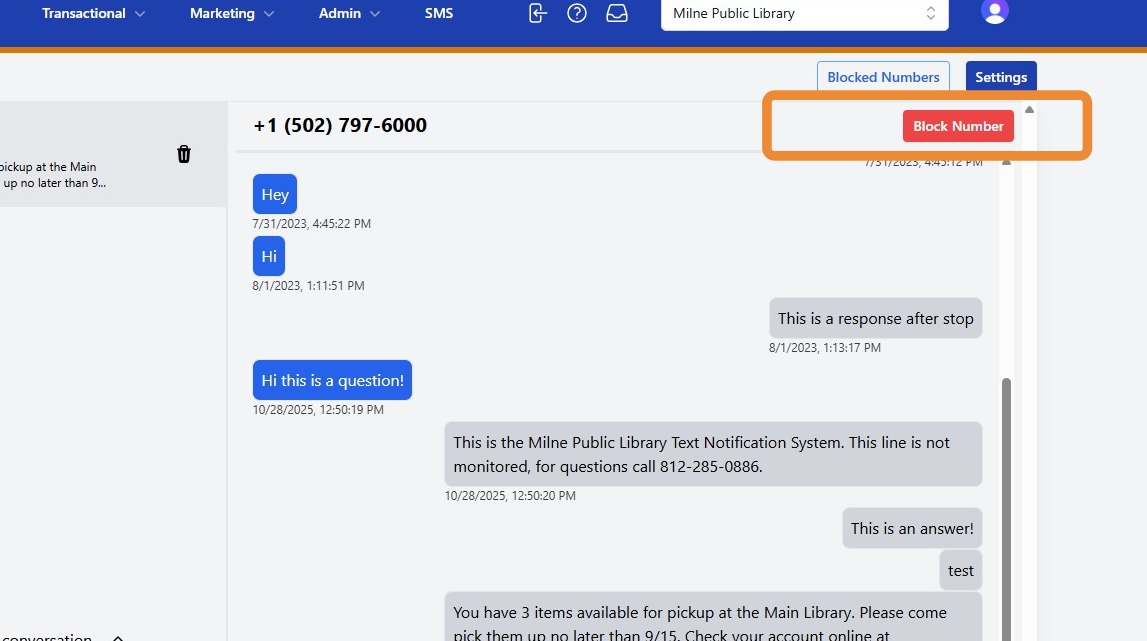
You also have the ability to block a number. To block a number from sending messages, open the conversation with that patron and select Block Number.
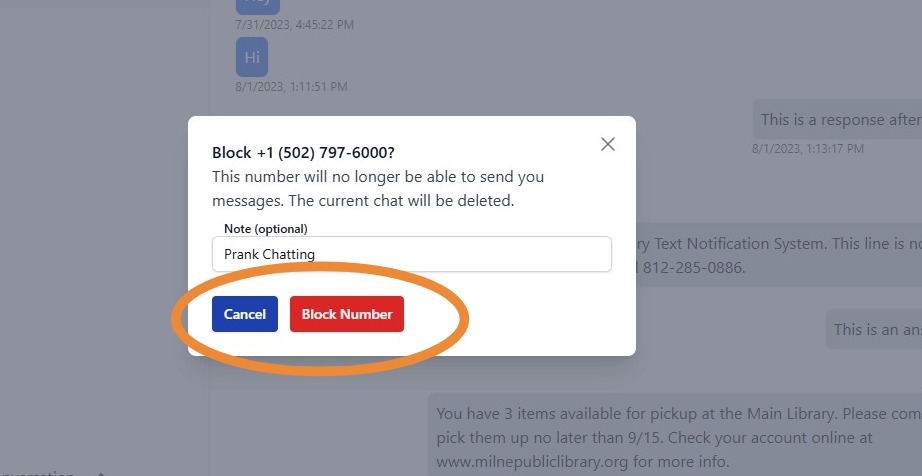
You can also add a note explaining why the number was blocked. This note will be visible to other staff members for reference.
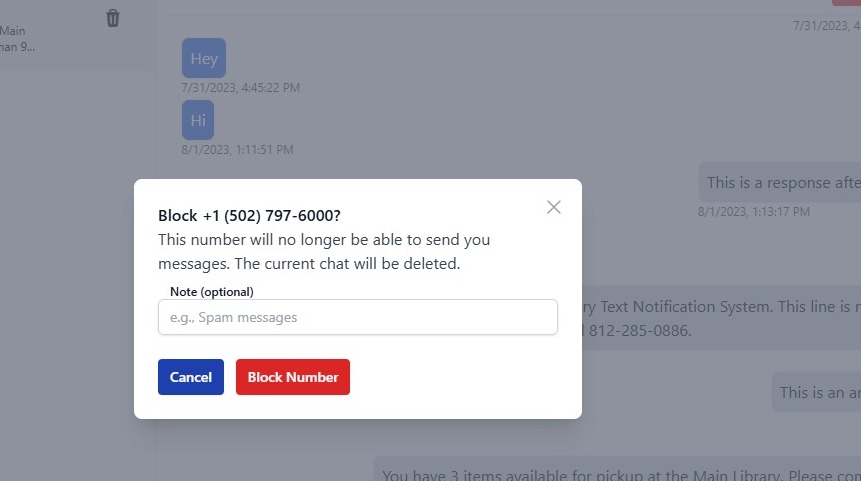
Be sure to confirm by selecting the red Block Number button to save your changes.
IMPORTANT TIP!
Blocking a number in the 2-Way SMS feature does not prevent the patron from receiving transactional SMS notifications (e.g., holds, due dates, or reminders). The block only applies to two-way chat communication.