Creating and Scheduling Marketing SMS
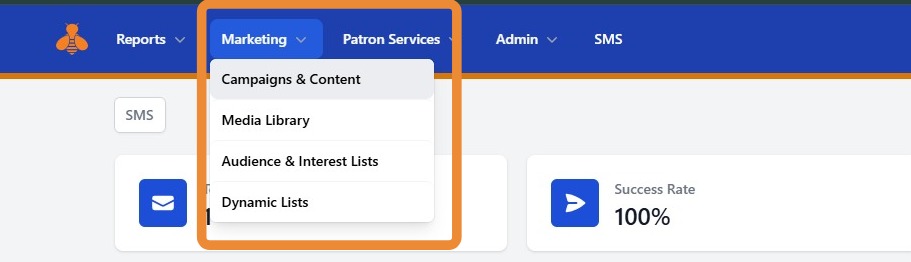
1. First, you will want to create a Campaign. From the portal home page, navigate to the Marketing drop down menu and select Campaigns and Content.
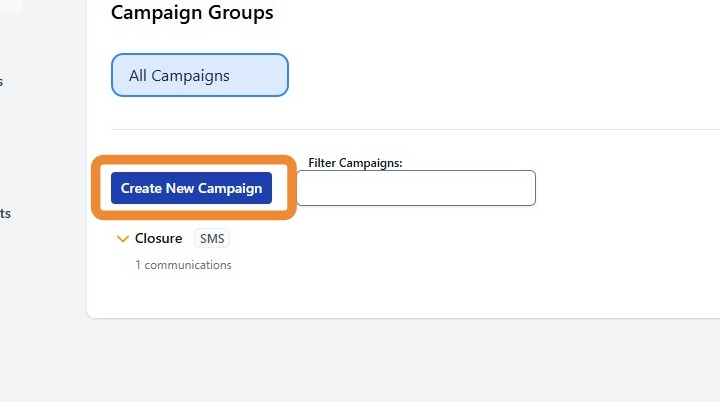
2. To create a SMS marketing campaign select "Create New Campaign".
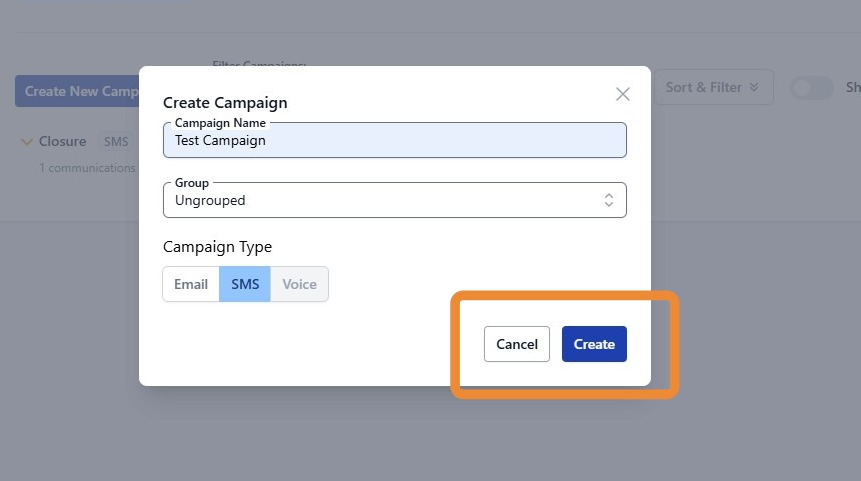
3. Give your campaign a name and make sure to select SMS as the campaign type.
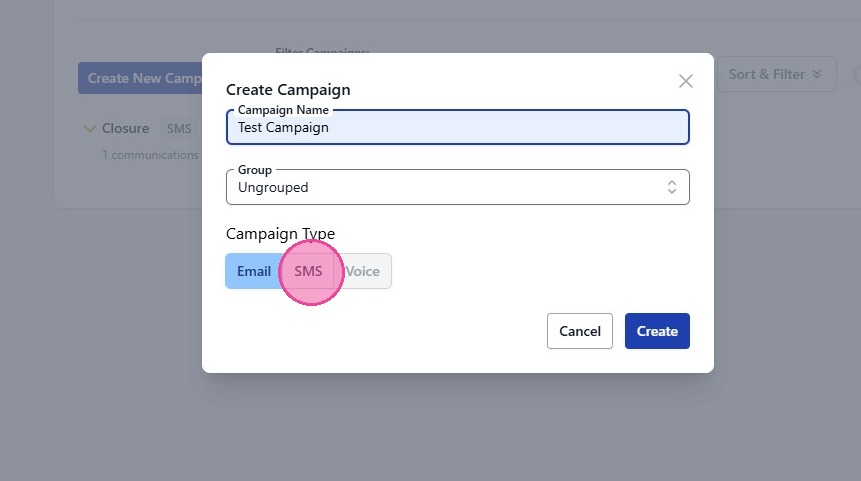
4. Once you have defined the Campaign Name and the Campaign Type, Select Create.
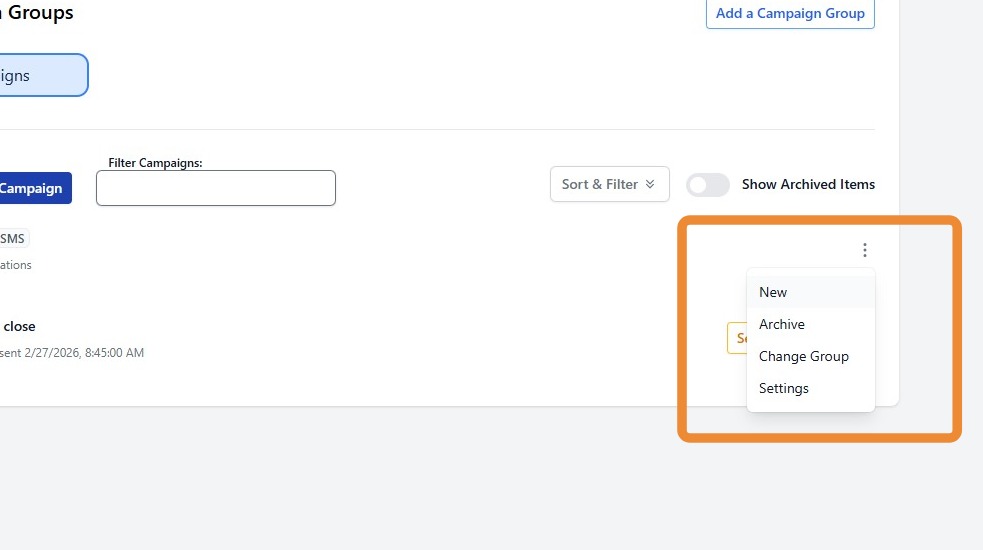
5. To create a new message, locate your desired campaign. Click the three-dot menu next to your campaign title. Select New.
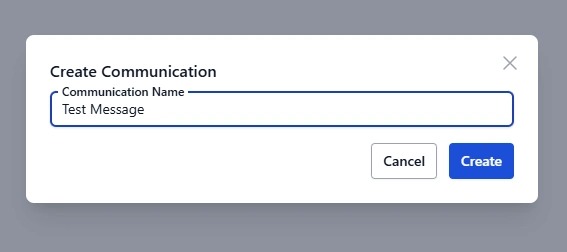
6. Enter a name for your communication a name and click Create.
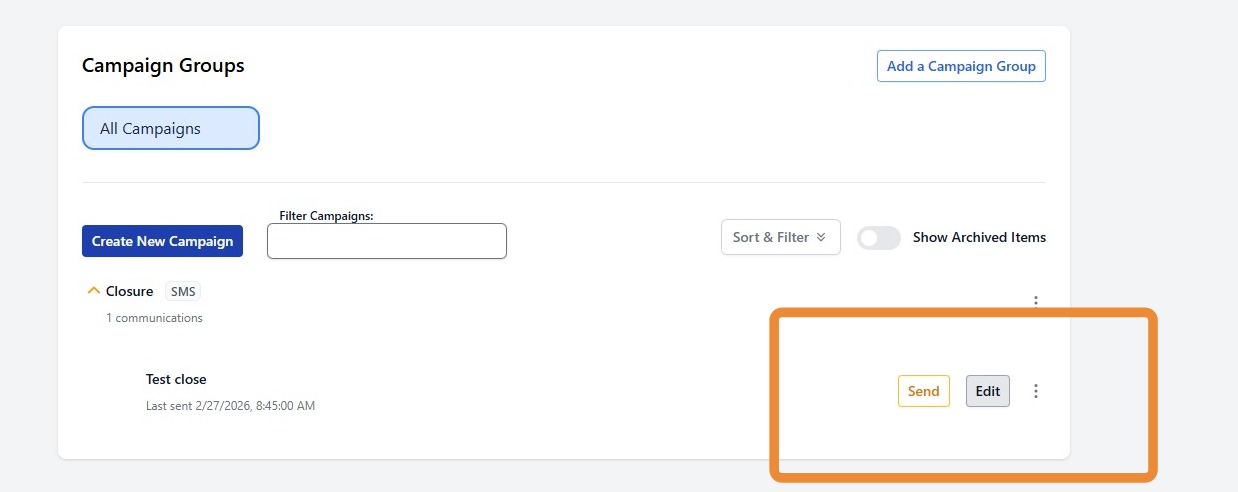
7. To create content, select edit next to your communication.
8. Enter the desired SMS message conent and click Save.
Reminder: SMS messages over 160 characters will count as multiple segments.
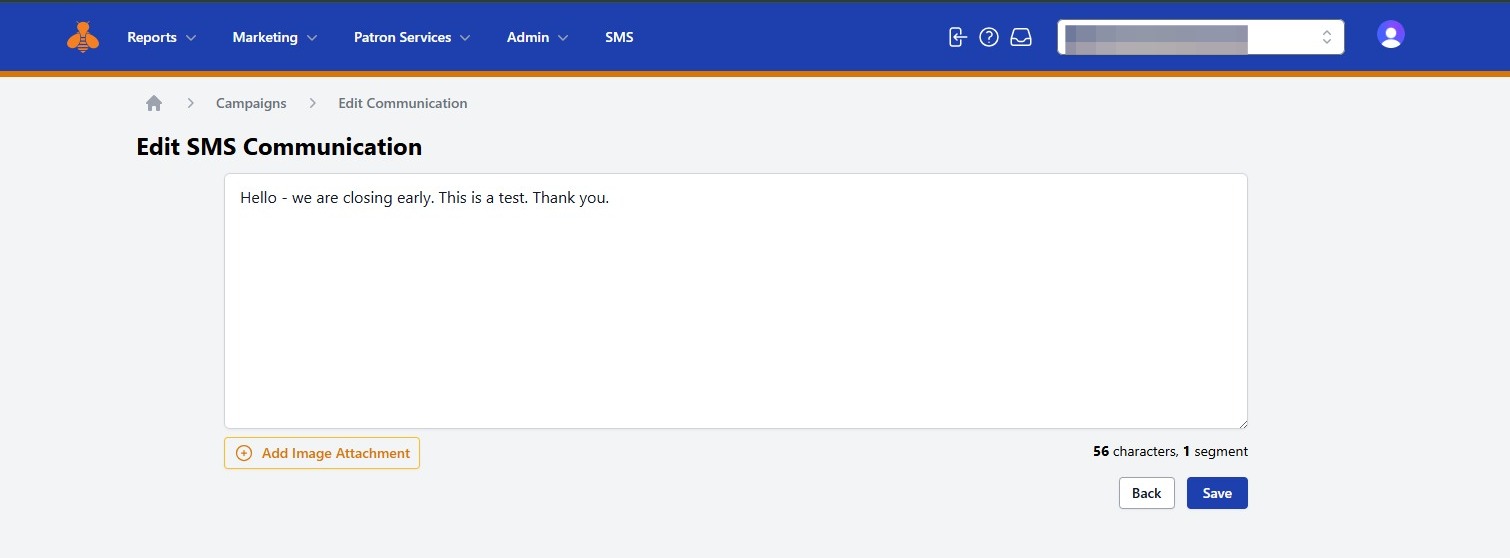
9. Once you have created and saved your message, you are ready to schedule and send your communication.
To schedule your message, you will want to select the Send button next to your communication.
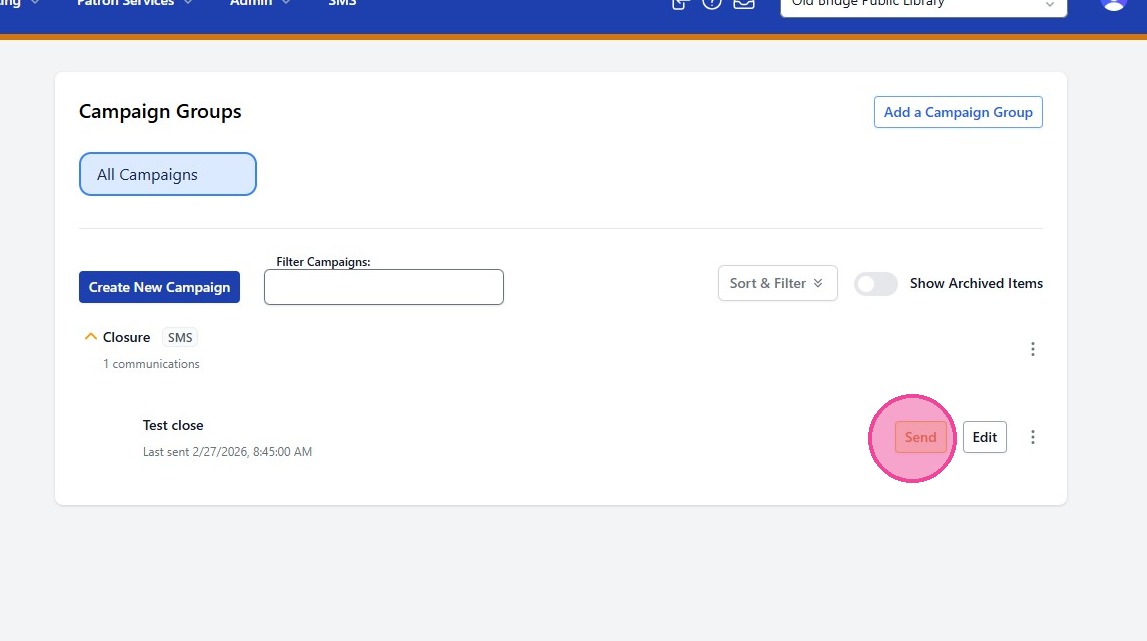
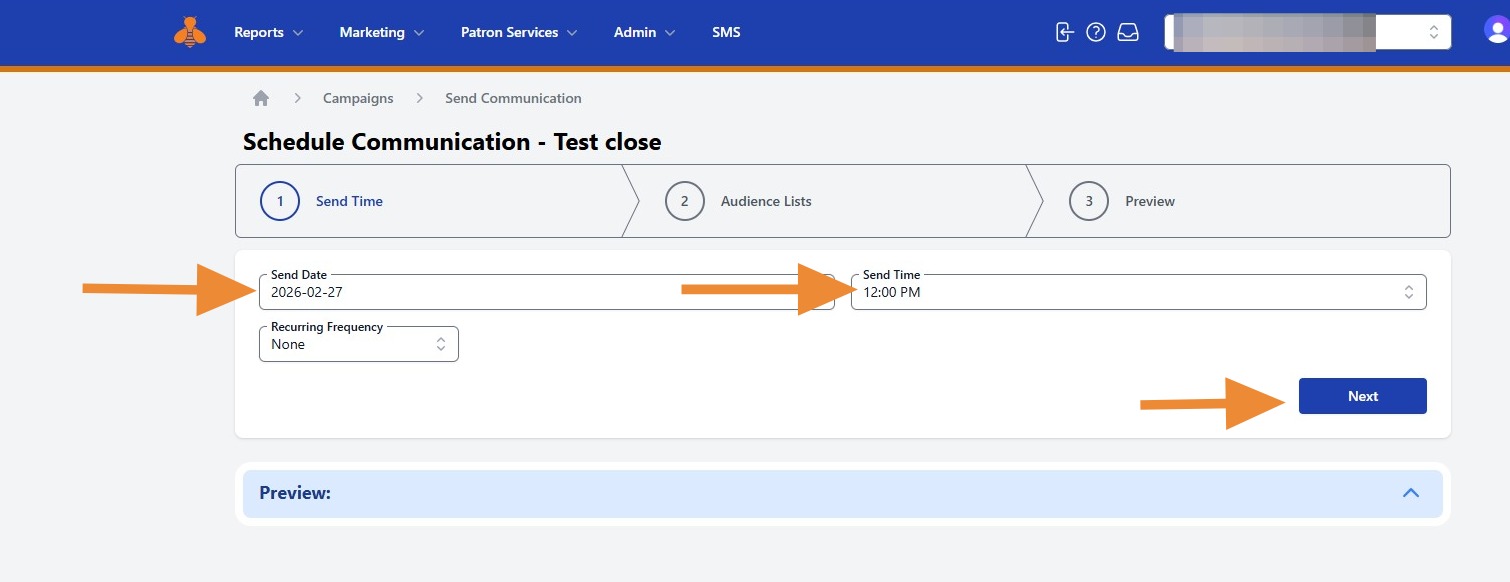
10. You will then step through the "Schedule Communication" steps. First, select the desired delivery date and time. Then click Next.
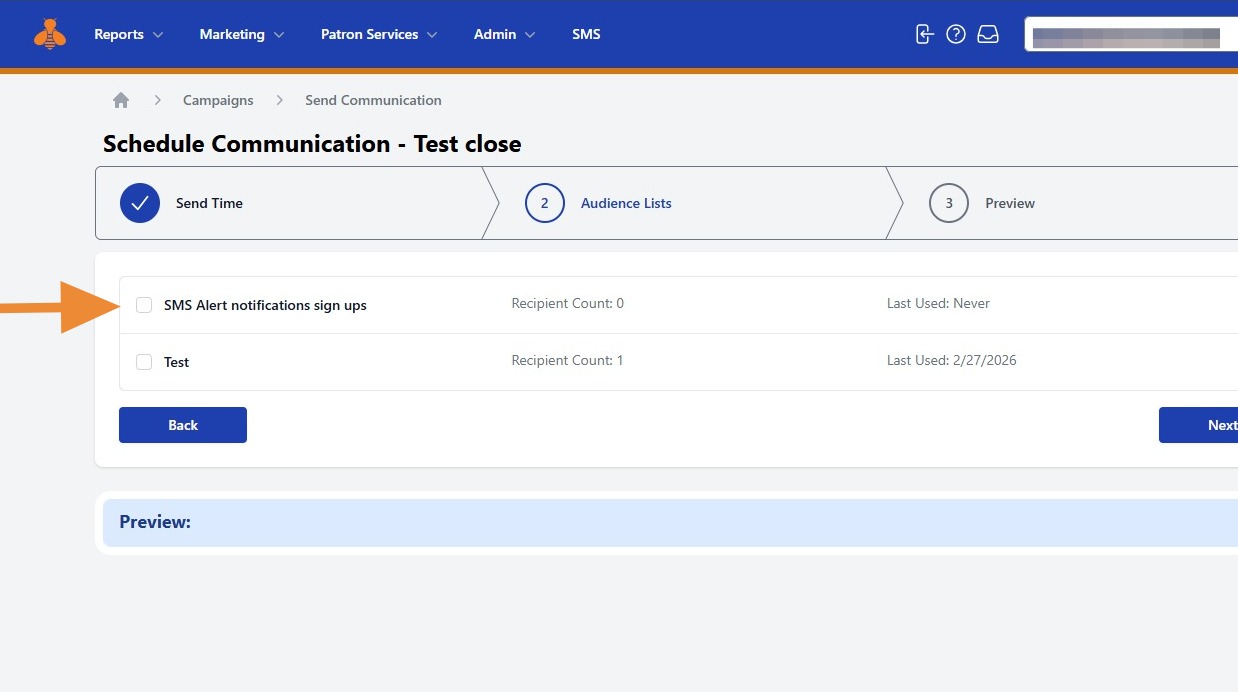
11. Select your desired audience recipient list(s).
- You may select more than one list.
- MessageBee will automatically deduplicate prior to sending.
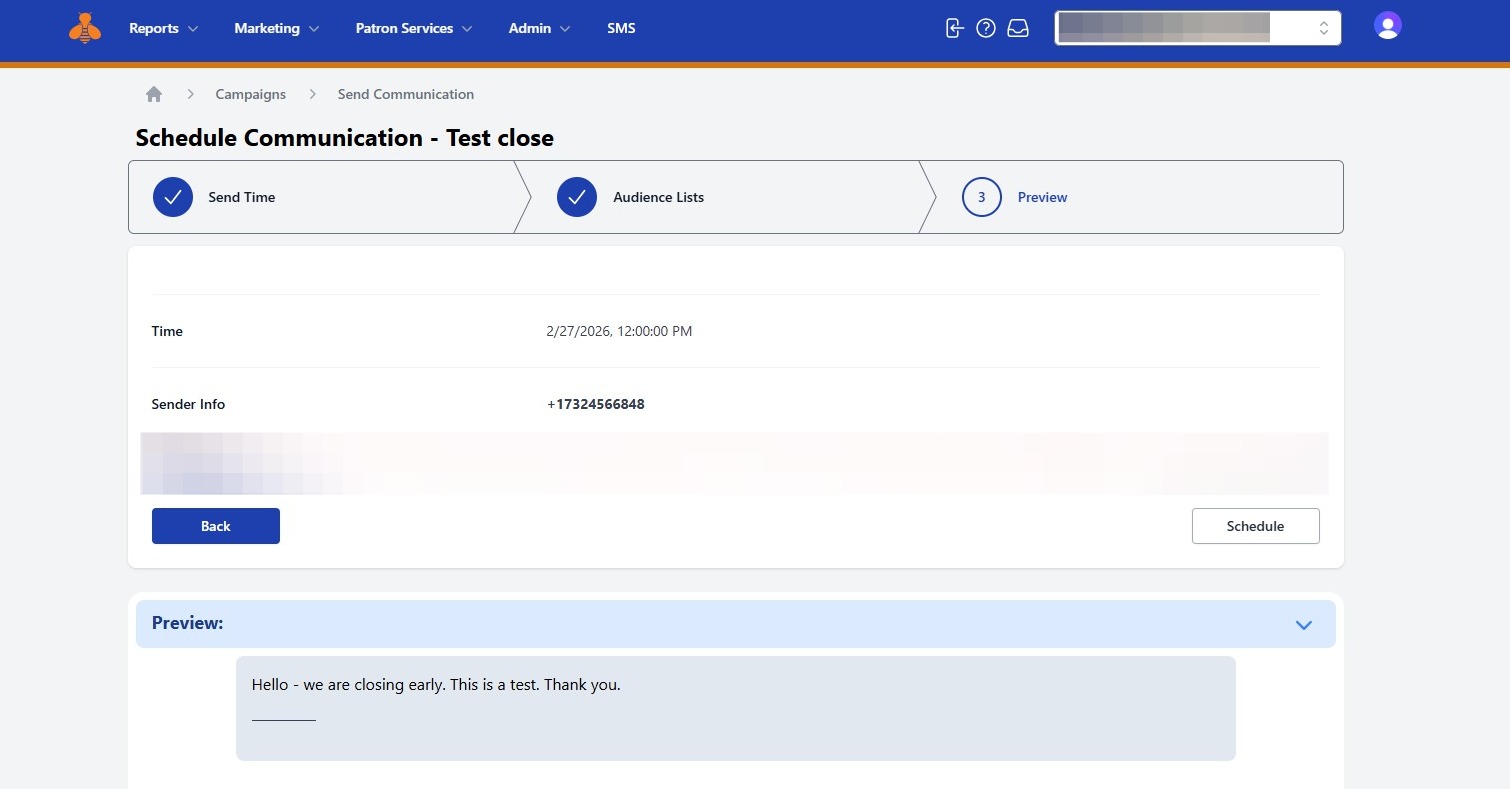
12. Review the preview page to confirm:
- Send date and time
- Selected recipient list(s)
- SMS Message content
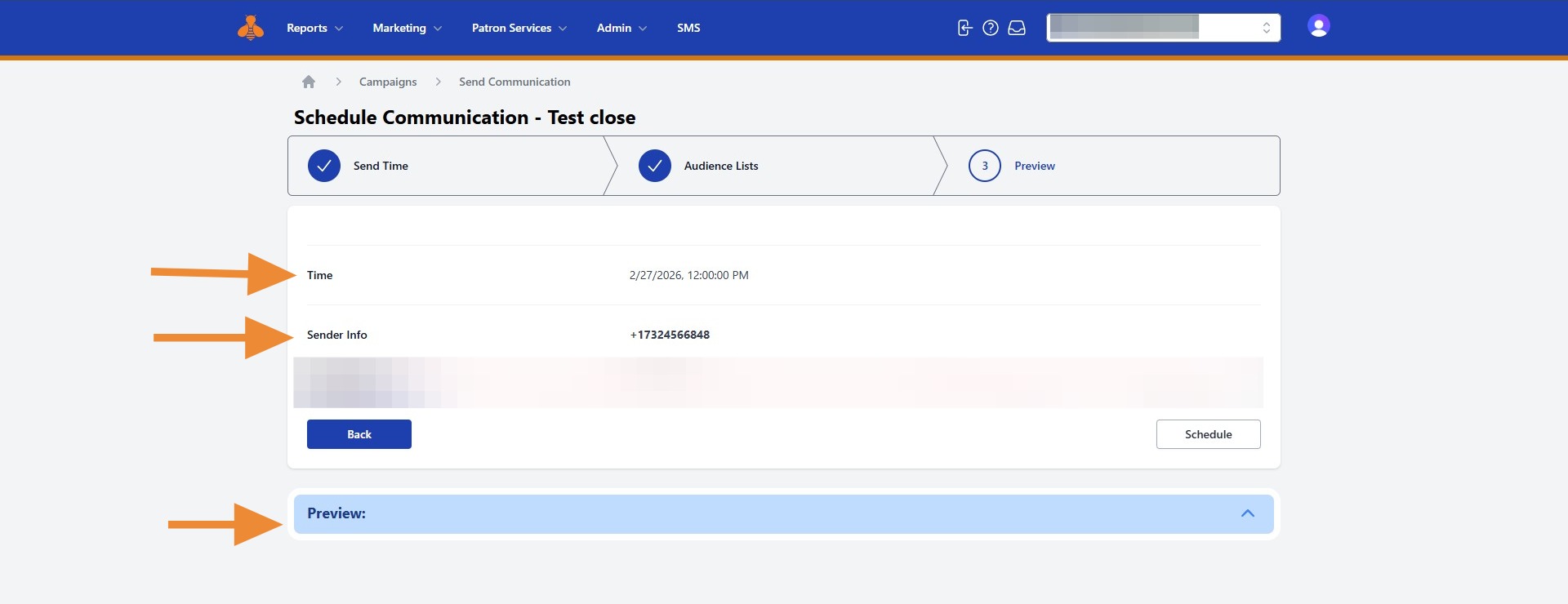
13. If all details are correct, click Schedule.
Congratulations! You have successfully scheduled your SMS marketing communication.