Select Communication Template
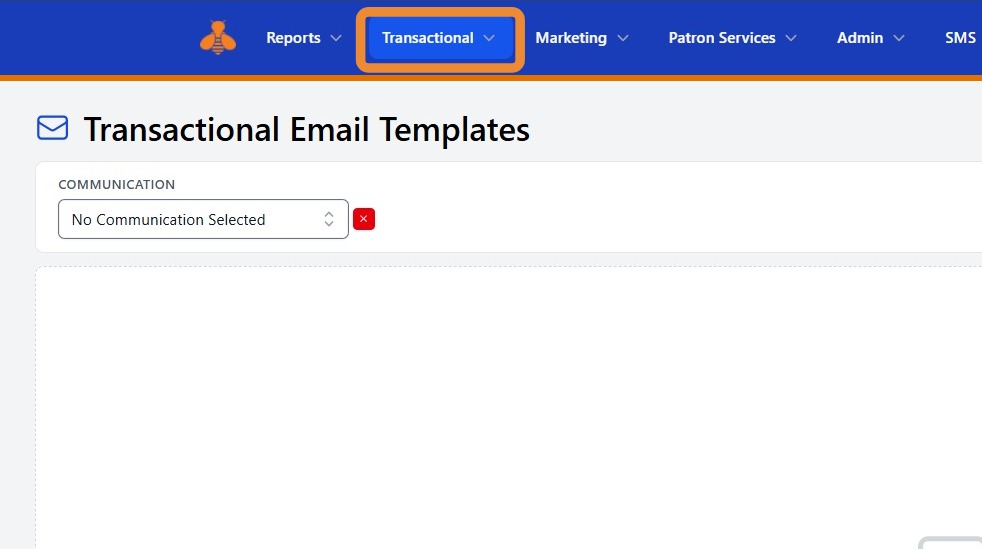
1. To view your transactional (circulation notification) templates in MessageBee, navigate to the Transactional tab.
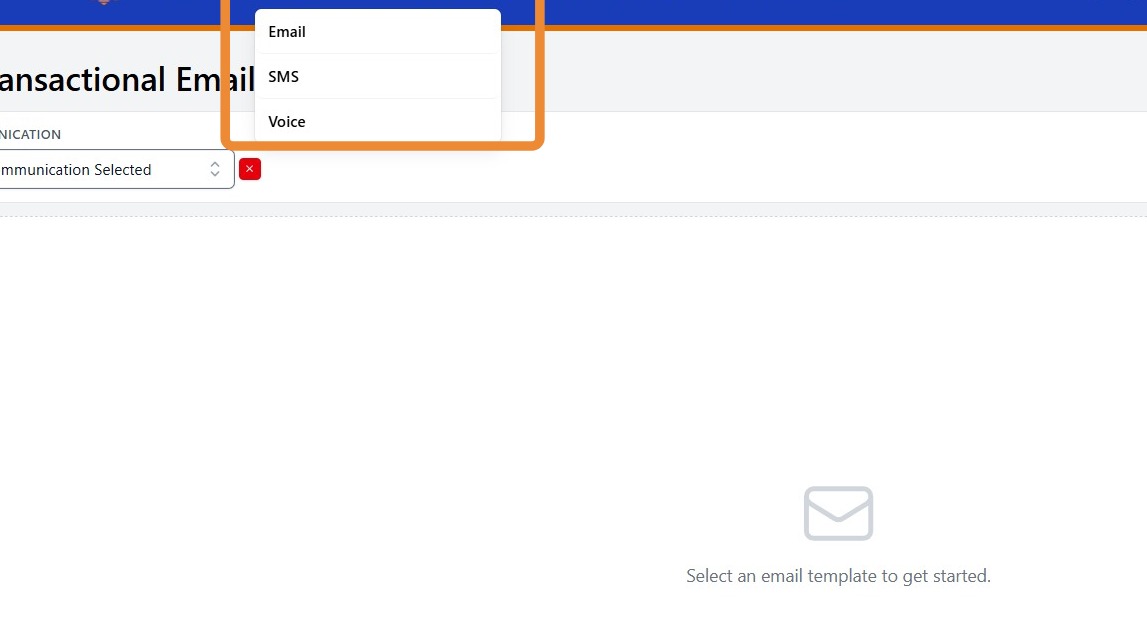
2. You will see a drop down menu. Select the desired communication channel to view the corresponding templates.
In the example below, we have selected the Email channel.
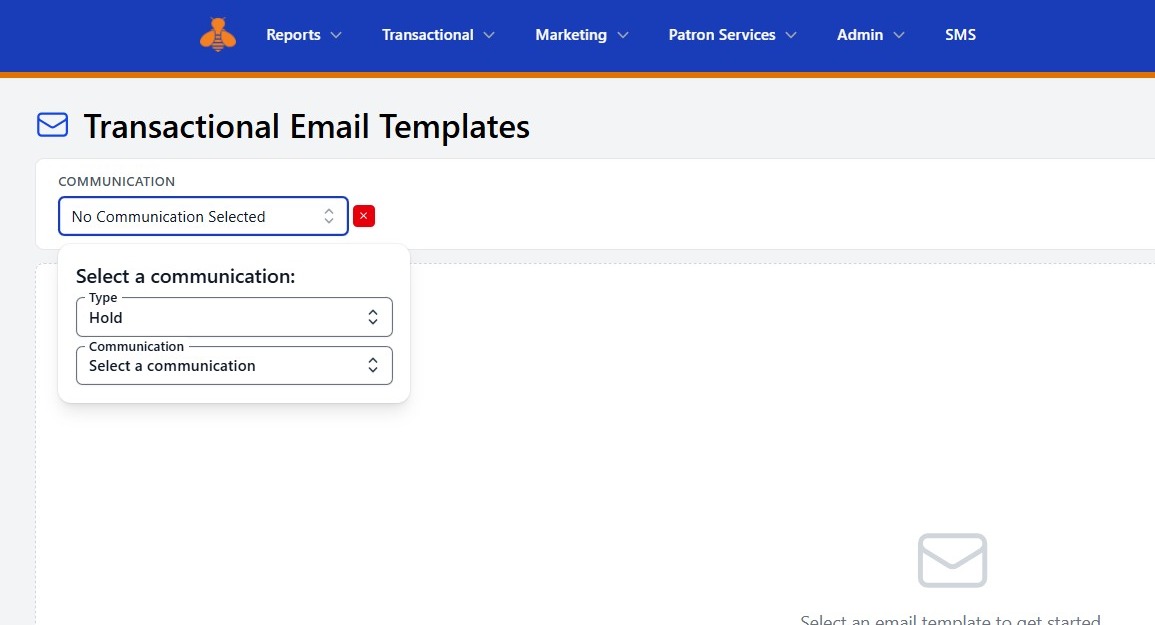
3. At the top, you will select a Type (Hold, Overdue, etc.) and then the specific Communication (Hold pickup, hold reminder, etc.).
This will allow you to slect the desired communication you would like to review and/or edit. In the example below, we have selected the hold and then the Milne Hold.
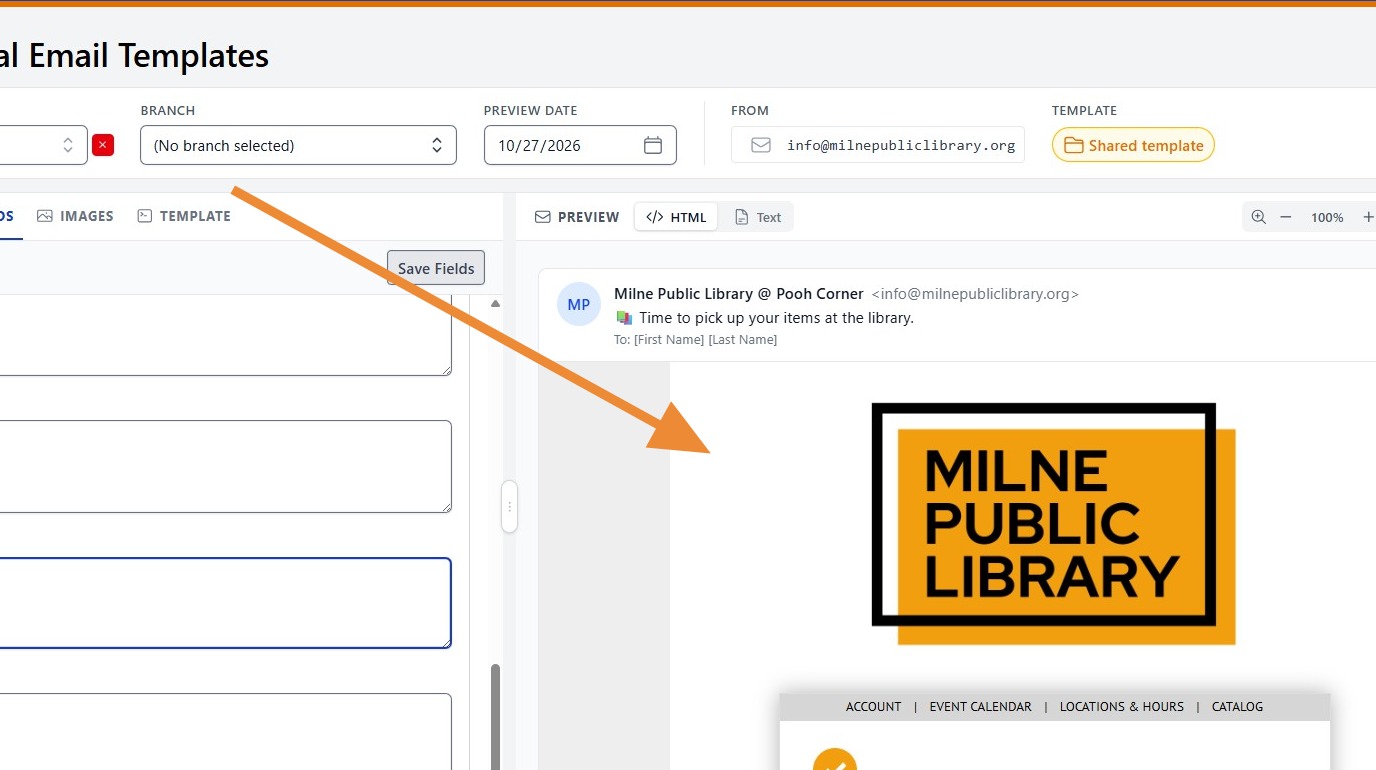
4. At the top of your email templates you will see your communication that you have selected. Additionally, you will see
- Your communication selected
- List of Branches
- Preview Date
- The From Email
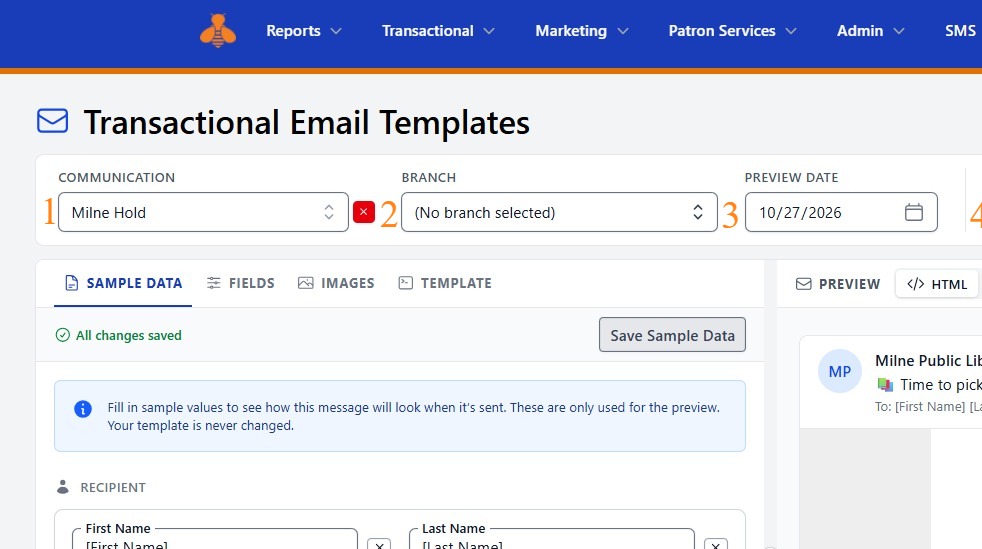
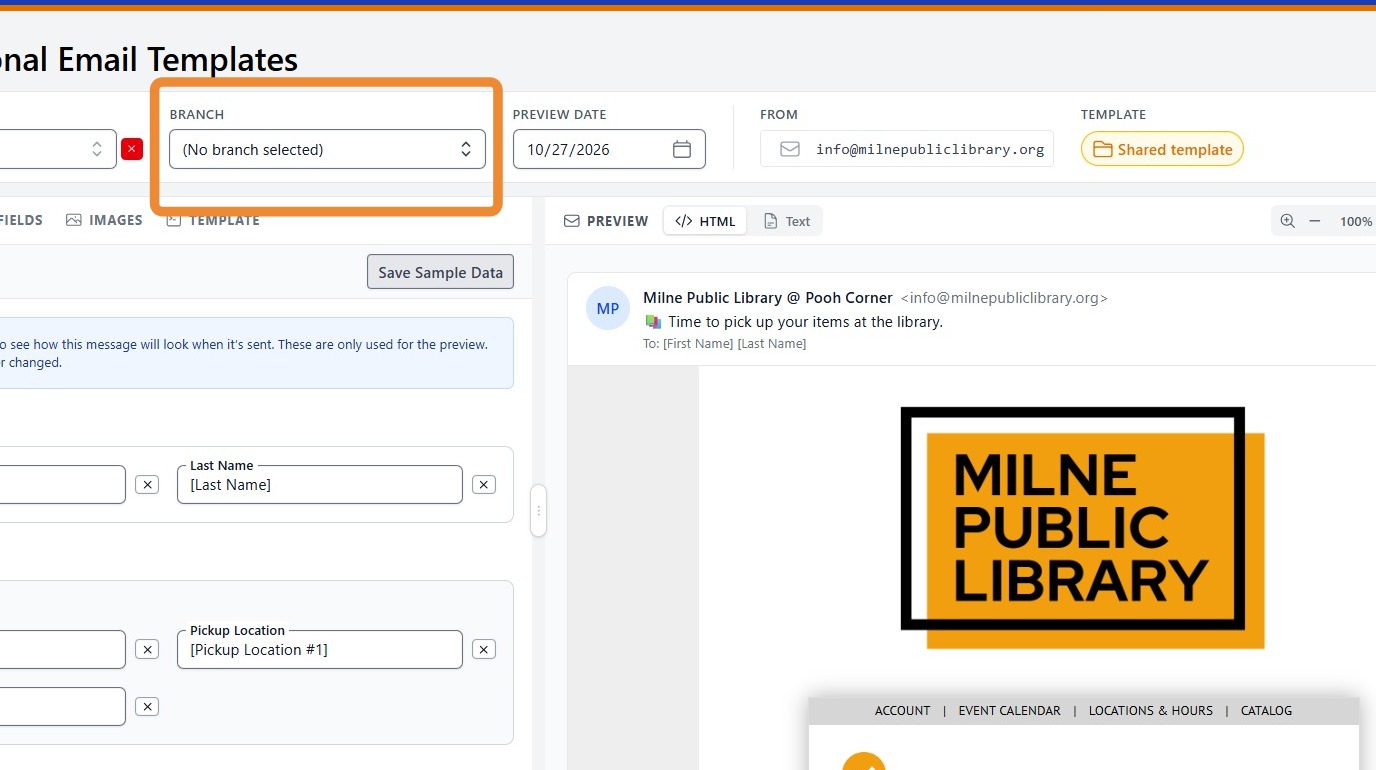
5. If you manage multiple locations and are set up for branch overrides, you can choose a specific branch from the drop-down menu to tailor the message for that location.
Please note - this is not the standard configuration.
Edit Template Fields
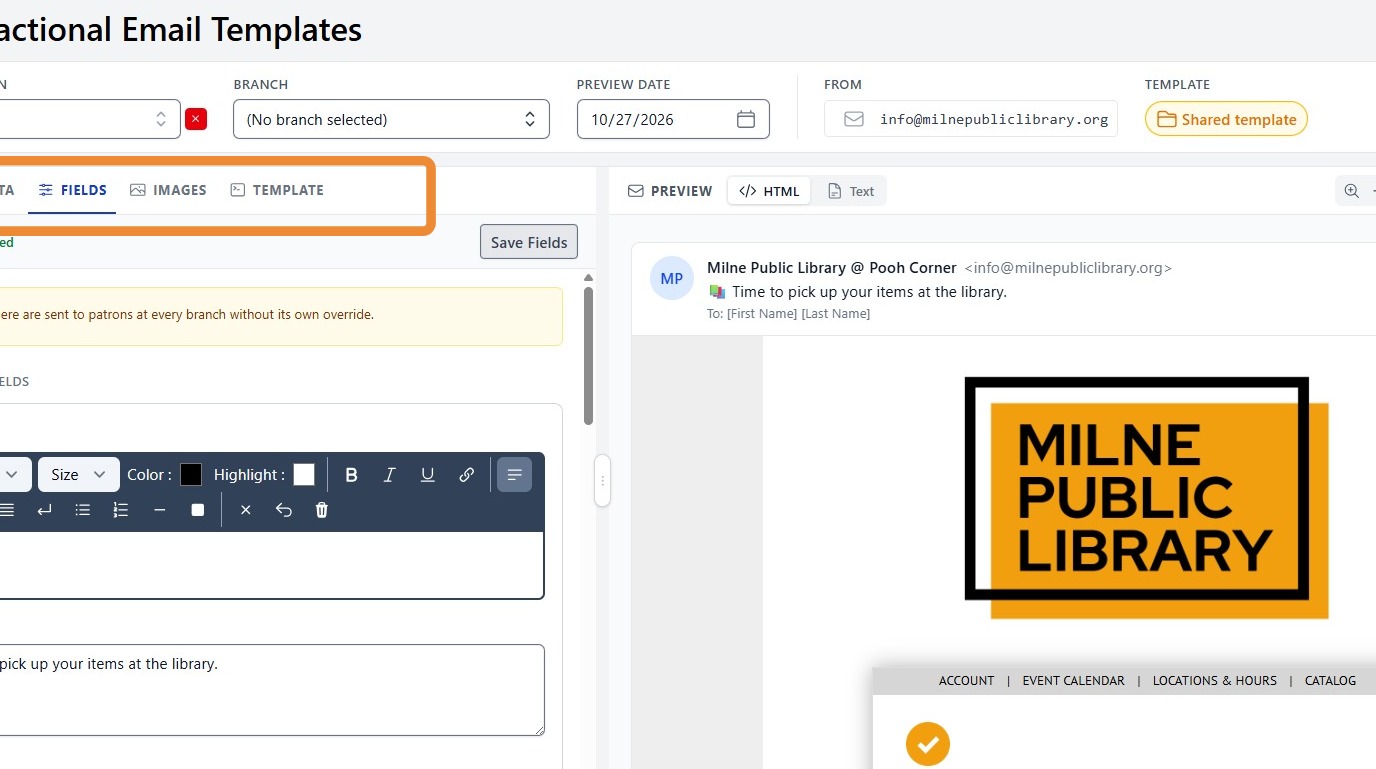
6. To modify the template, click the Fields option.
7. You will be presented with the Fields table which details all the fields that can be edited.
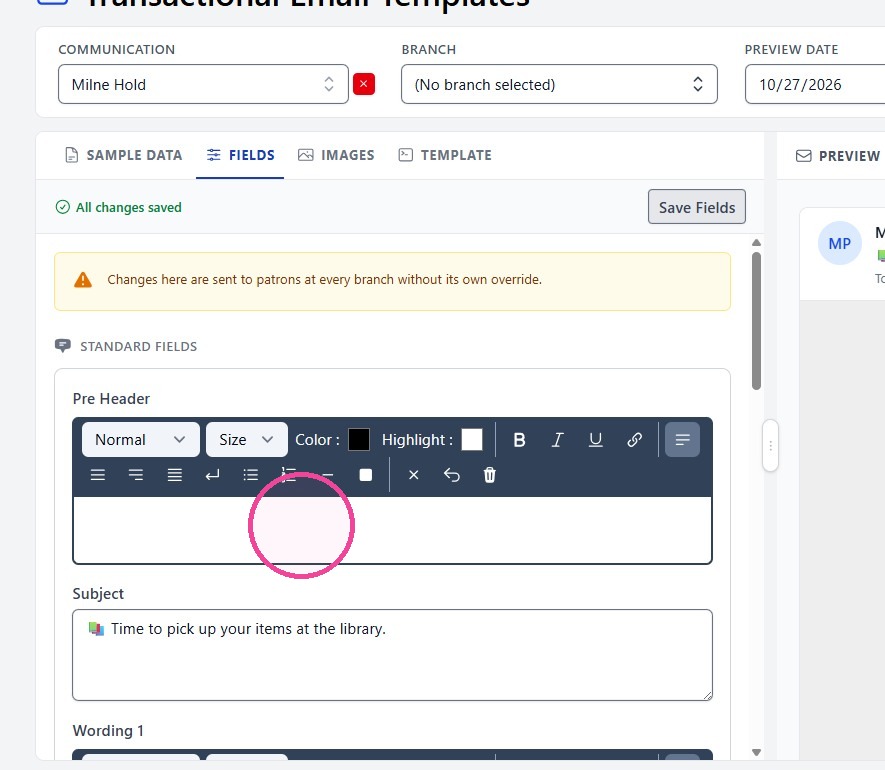
8. Making changes is easy! Simply type the updated information.
Important: After making any edits, be sure to click the SAVE button next to the content to save your changes.
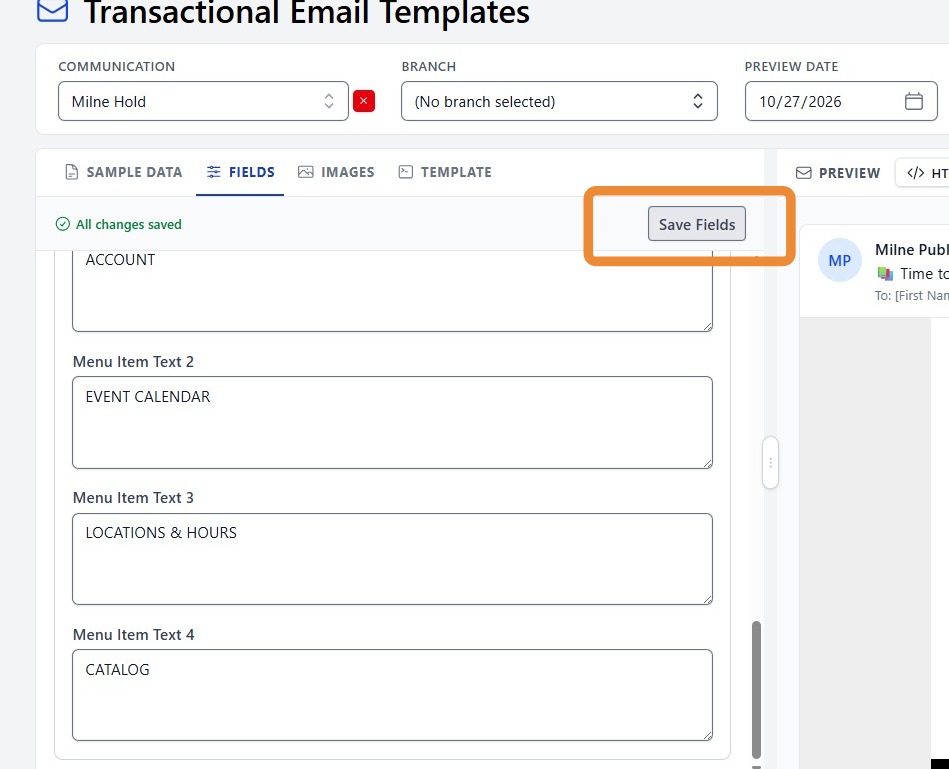
9. You will be able to immediately view your updated content.